Best Topaz Gigapixel Alternatives for Occasional Upscaling: Free, Browser, and Local Options (2026)
Updated October 28, 2026
This guide compares five Topaz Gigapixel alternatives for people who upscale a few images a month: cnaps studio, Topaz's web upscaler, Upscayl, Adobe Super Resolution, and Krea Enhancer. Each one is compared on where it runs, what it costs at low volume, what you give up, and how much effort switching takes. In short, free and low-cost tools now cover most everyday enlargements. If you want to find the best model for your own photos without installing anything, cnaps studio runs six upscalers side by side on its free plan. Gigapixel fits better if you need its Face Recovery model, its Lightroom and Photoshop plugins, or files that stay on your machine.
Why people look for an alternative
The reasons fall into four groups, and they lead to different tools.
Cost at low volume. Gigapixel Personal is $149 a year, or $29 billed month to month. At the yearly price, enlarging twenty images a year works out to about $7.50 each.
Hardware. Gigapixel runs on your computer by default. Its heavier models need a capable graphics card, though cloud rendering is included on every plan.
Features you do not use. Many people only ever need a clean 2x or 4x on ordinary photos, and never touch Face Recovery or the restoration models.
Where the work happens. Some people want a browser tool with nothing to install. Others want the opposite, a free local tool where files never leave the machine.
How we compared
We compared every tool on the same five fields: what it is best for, how it differs from Gigapixel, what you give up, what it costs at low volume, and how much effort switching takes.
Details for each tool come from its official product, pricing, and documentation pages, checked October 28, 2026. Speed and memory figures for cnaps studio come from our own model documentation.
The comparison images in this post show cnaps studio models only. We did not run the other tools for them.
Comparison at a glance
Switching effort is low across the board, because an upscaler has no projects or workflows to migrate. The exception is anyone who upscales from inside Lightroom or Photoshop, where the plugin saves an export and re-import on every image.
The five alternatives
cnaps studio
Best for: finding the right model for your photos, with nothing to install and no commitment.
Why choose it over Gigapixel: it puts six open upscaling models in one browser workspace, all included on the free plan: PiSA-SR, Swin2SR, SwinIR, SMFANet+, FiDeSR, and CODSR. Each is tuned for a different job, much like Gigapixel's own model list. You can send the same photo through several of them at once and line the results up in Image Compare, so the choice comes from your own image instead of a sample gallery. To try a prepared comparison with your own photo, follow our guide to comparing three image upscalers.
The six cover a wide range. In our model documentation, measured on cnaps studio GPUs without queue time, SMFANet+ doubles a 512-pixel image in about 0.1 seconds and PiSA-SR takes around 50 seconds. SMFANet+ suits clean product shots and large batches, and PiSA-SR is the one to try when fabric, foliage, or compressed web photos need more texture. Swin2SR sits between the two on speed and sharpness, SwinIR handles 3x and 8x for awkward target sizes and very small sources, and FiDeSR and CODSR are one-step diffusion upscalers that add generated detail while staying close to the source.
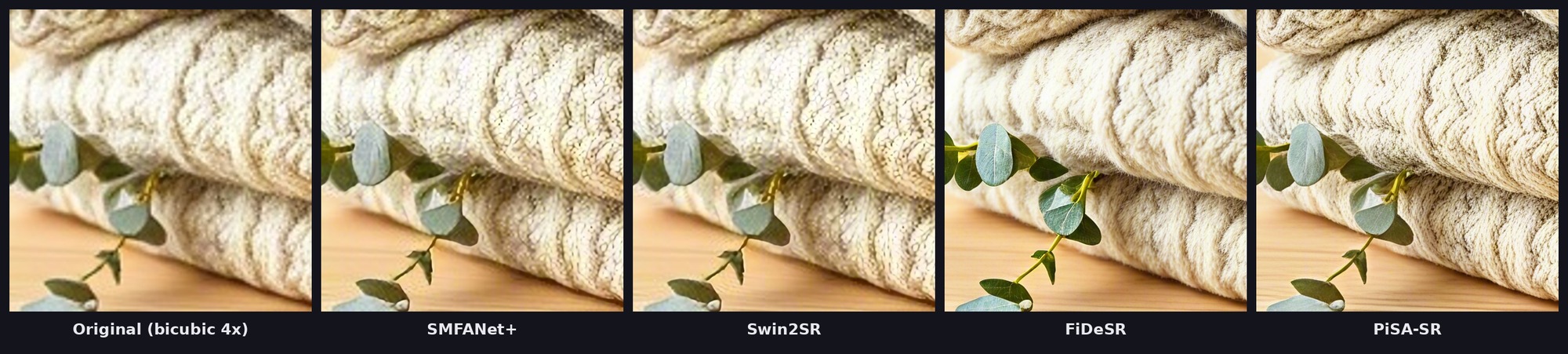
On that knit sweater, the differences are easy to see. SMFANet+ and Swin2SR keep the texture close to the original with cleaner edges. FiDeSR brings out loose fibers and adds local contrast. PiSA-SR draws the most defined stitches of the four. One flow ran all four from the same source, including generating the photo, in under four minutes.
Upscaling also connects to everything else on the platform. A single flow can remove a background and then upscale the result in one run, and the same flow can be called through the API or MCP, for example straight from Claude. Batch Run, available from the Starter plan, sends a whole set of images through the same upscaler in one go, so it is as useful for a one-off photo as for a catalog you process every week.
What you give up: a dedicated face model and the Lightroom and Photoshop plugins. Processing happens in the cloud.
Price and limits: the free plan includes all six models, runs one job at a time, and watermarks output. Paid plans start at $20 a month with Starter, which removes the watermark and adds Batch Run.
Switch if your photos vary and you want to see several models on them before you pick, or you need 3x or 8x. Stay on Gigapixel if portraits are your main work or client files cannot leave your machine.
Try all six upscalers in cnaps studio →
Topaz web upscaler
Best for: a handful of images when you want Topaz's models without installing anything.
Why choose it over Gigapixel: it is the same vendor's upscaling in a browser, and the first 10 images are free with no watermark.
What you give up: the Lightroom and Photoshop plugins and the full desktop model list.
Price and limits: 10 free upscales, then $19 a month.
Switch if you need fewer than ten images or want a Topaz result without a yearly license. Stay on Gigapixel if you upscale inside Lightroom every week.
Upscayl
Best for: unlimited upscaling on your own machine, at no cost.
Why choose it over Gigapixel: it is free and open source, with no account, no watermark, and no usage cap. It runs on Windows, macOS, and Linux, and can upscale a whole folder at once.
What you give up: a face model and the restoration models. Upscayl is built on Real-ESRGAN models, and its own documentation says it is the wrong tool for blurred or out-of-focus images.
Price and limits: free and open source under AGPLv3. It needs a Vulkan-compatible graphics card, and most integrated graphics will not run it.
Switch if you have a capable GPU and mostly enlarge photos. Stay on Gigapixel if your computer runs on integrated graphics or you need the restoration models.
Adobe Super Resolution
Best for: photographers who already edit in Lightroom or Photoshop and need a clean 2x.
Why choose it over Gigapixel: it is built into Adobe Camera Raw and Lightroom, so there is no new tool, export, or re-import.
What you give up: any scale beyond 2x from Super Resolution itself. It doubles width and height, so the image ends up with four times the pixels, and there is no other setting.
Price and limits: included with Adobe's Lightroom and Photoshop plans.
Switch if 2x covers your prints and crops. Stay on Gigapixel if you regularly need 4x or more from small sources.
Krea Enhancer
Best for: enlarging images you generated, in the same app you generated them in.
Why choose it over Gigapixel: the upscaler sits next to Krea's generation and editing tools, so there is no hand-off between apps, and it has its own controls for how much detail an upscale adds.
What you give up: free output above 2K and commercial rights on the free plan.
Price and limits: daily free credits with upscaling to 2K and no card. Higher resolutions and a commercial license start at $9 a month.
Switch if most of what you upscale is generated and destined for screens. Stay on Gigapixel if you mainly upscale photographs inside Lightroom or Photoshop.
When to keep Gigapixel
Some readers should not switch at all.
Keep it if you restore portraits and rely on its Face Recovery model. Keep it if you upscale from inside Lightroom or Photoshop every week, because the plugins keep that work inside your editor. Keep it if client files have to stay on your machine. And keep it if you enlarge more than a few images a week, since the yearly price per image drops quickly at that volume.
You also do not have to pick one. A common setup is Gigapixel for portraits and cnaps studio for product shots, landscapes, and graphics, where comparing a few models side by side pays off fastest. Our seasonal product photography flow and furniture room-setting flow both end with an upscaling step for exactly that kind of image.
Before you switch: a short checklist
- Pick twenty of your own images that cover what you actually upscale: product shots, portraits, scans, screenshots.
- Run the same twenty through the candidate tool at the scale you normally use.
- Compare at 100% zoom on the same region, such as fabric, hair, or text, and not the whole image at fit-to-screen.
- Check the free tier's limits against your volume: image count, maximum resolution, and watermark.
- Check commercial rights on the plan you would actually use.
- If you use the Lightroom or Photoshop plugin, time the export, upscale, and re-import round trip once.
Upload one of those twenty photos to cnaps studio and run it through all six upscalers in a single Image Compare view.
FAQ
Is cnaps studio free to use for upscaling?
Yes. The free plan includes all six upscaling models: PiSA-SR, Swin2SR, SwinIR, SMFANet+, FiDeSR, and CODSR. Free output carries a watermark and runs one job at a time. Paid plans start at $20 a month with Starter, which removes the watermark and adds Batch Run.
Which cnaps studio upscaler should I start with?
Start with SMFANet+ for clean product shots and large batches, since it is the fastest of the six. Use PiSA-SR when texture matters, such as fabric, foliage, or compressed web photos. Use SwinIR when you need 3x or 8x. If you are unsure, run two or three and compare them in Image Compare.
Can I upscale many images at once in cnaps studio?
Yes. Batch Run, available from the Starter plan, sends a whole set of images through the same flow in one go. You can also call any flow through the API, so an upscaling step can run inside your own scripts or tools and process a whole catalog without opening the browser.
Can I run cnaps studio upscalers from Claude?
Yes. Every flow in cnaps studio can be called through MCP, including on the free plan. Connect cnaps studio to Claude, and you can ask it to upscale an image with a specific model and scale, or to run a saved flow that removes the background and upscales the result in one step.
