AI Video Generator with Sound: How to Generate Video and Audio Together (2026)
Updated November 12, 2026
An AI video generator with sound creates the soundtrack in the same pass as the picture, so footsteps, room tone, and rain arrive already timed to what is on screen. cnaps studio runs three open models that do this, LTX-2.5, Cosmos3 Nano, and MiniMax-H3 Ref2VA, all on the free plan. You describe the scene and the sound in one prompt and get back a clip with audio, ready to post or edit.
This guide covers how audio generation works in these models, how to prompt for sound, which model fits which job, and what one real clip sounded like.
How video and audio are generated together
A model with joint audio generation learns picture and sound from the same training clips, so it produces both at once instead of adding a soundtrack afterwards. That is why a cup set down on a table can make a sound at the moment it lands, or why a crowd gets louder as the camera moves closer.
The sound is described in the same prompt as the picture. If you say nothing about audio, the model chooses something on its own, which may include music or voices you did not want.
Models that generate sound
| Model | Best for | Audio |
|---|---|---|
| LTX-2.5 | High-resolution clips with ambience and effects | 48 kHz stereo, with 1920x1088 video |
| Cosmos3 Nano | Commercial projects | Synchronized audio, under a license that allows commercial use |
| MiniMax-H3 Ref2VA | Keeping a person or product consistent across shots | Synchronized audio, guided by a reference image or clip |
LTX-2.5 outputs 1920x1088 video with a stereo track. Cosmos3 Nano is NVIDIA's model, and its license allows commercial use, which matters for client work. MiniMax-H3 Ref2VA takes a reference image or clip so the same subject appears across several shots.
How to do it in cnaps studio
- Write one prompt for picture and sound. Describe the scene, then add a line that starts with "Audio:" and lists what should be heard.
- Say what to leave out. "No speech, no music" stops the model from adding voices or a score you did not ask for.
- Pick a model. Connect the prompt to LTX-2.5, Cosmos3 Nano, or MiniMax-H3 Ref2VA. With Cosmos3 Nano, switch the sound setting on.
- Run and listen. Send the same prompt to two models and play the clips side by side in Video Compare.
- Animate a photo instead. Each of these models can also start from an image, so a product photo can become a clip with sound.
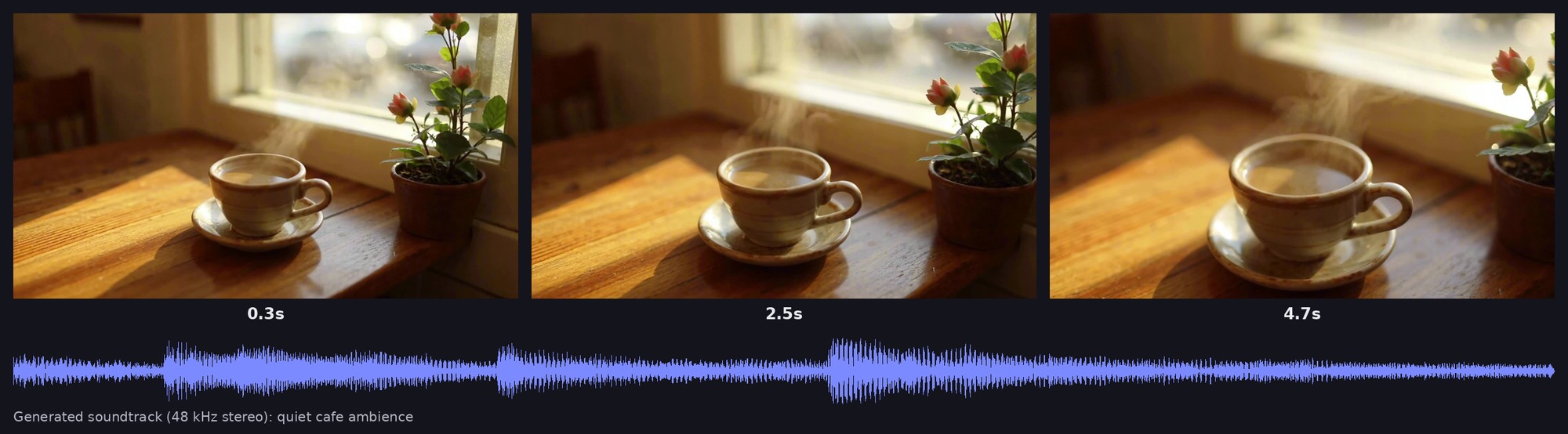
The model followed the camera move, kept the cup, saucer, and table consistent from the first frame to the last, and laid a quiet ambient track under the picture. The clip came back at 1920x1088 with a five-second, 48 kHz stereo soundtrack in under seven minutes, including time in the queue.
Generate video with sound in cnaps studio →
Prompting for sound
Name the sources. "Rain on a window, distant traffic" gives the model concrete sounds to place. "Atmospheric audio" does not.
Match sound to motion. If something moves on screen, mention the sound it should make. The model times audio to visible events more reliably when the prompt links them.
Keep it quiet when in doubt. Ambience and small effects come out cleaner than dialogue. For speech, record or generate the voice separately and add it in your editor.
Making many clips with sound
A flow that works for one prompt works for a list of them. Batch Run, available from the Starter plan, sends a whole set of prompts or images through the same flow, and the flow can be called through the API or MCP, for example from Claude. SeedVR2 can be added after the video model if you need a higher resolution.
The free plan includes all three models, runs one job at a time, and watermarks output. Paid plans start at $20 a month with Starter, which removes the watermark and adds Batch Run.
Generate your first video with sound on cnaps studio and compare two models on the same prompt.
FAQ
Which cnaps studio models generate video with sound?
Three models generate audio together with the video: LTX-2.5, Cosmos3 Nano, and MiniMax-H3 Ref2VA. All three are on the free plan. LTX-2.5 outputs a 48 kHz stereo track with 1920x1088 video, and Cosmos3 Nano ships under a license that allows commercial use.
How do I stop the model from adding music or voices?
Say so in the prompt. Add a line such as "Audio: quiet cafe ambience, soft clink of a spoon, no speech, no music." Without that line, the model chooses its own soundtrack, which can include music or voices you did not ask for.
Can I add sound to a video I already have?
These models generate sound and picture together, so they work from a prompt or a starting image rather than an existing clip. Cosmos3 Nano can continue an existing clip, which is the closest option inside cnaps studio.
Can I use these clips commercially?
It depends on each model's license. Cosmos3 Nano's license allows commercial use. Check the license on each model's page before using a clip in client or paid work, and note that free-plan output carries a watermark.
