How to Fix a Blurry Photo with AI: Motion Blur, Soft Focus, and Noise (2026)
Updated November 12, 2026
To fix a blurry photo with AI, you first work out what kind of blur it is, then run a model trained for that kind. Camera shake and a moving subject need a motion-blur model. A soft, slightly out-of-focus shot needs a restoration model that rebuilds detail. Grain from low light needs a denoiser, and a small image needs an upscaler. cnaps studio has a model for each of these on the free plan, and they can run one after another in a single flow.
This guide shows how to tell the blur types apart, which model fixes which, and what a real before and after looked like.
What kind of blur is it?
Motion blur. Edges smear in one direction, like a streak. It comes from the camera moving during the shot or the subject moving through the frame.
Soft focus. Everything looks evenly soft, with no streaks. The lens focused in front of or behind the subject, or the photo was enlarged from a small file.
Noise. The image looks grainy rather than blurred, usually in dark areas. It comes from shooting in low light at a high ISO.
Low resolution. The photo looks fine small but turns soft and blocky when you enlarge it.
Most problem photos have more than one of these. A night shot from a phone, for example, is often both noisy and slightly shaken.
Which model fixes which
| Problem | Model | Notes |
|---|---|---|
| Motion blur | Motion Blur Removal | Fast, for camera shake and moving subjects |
| Soft focus, heavy blur | Real-World Blur Removal | Diffusion model that rebuilds detail, about 1 to 3 minutes per image |
| Noise and grain | Image Denoiser | Presets for light, moderate, and heavy noise |
| Compression blocks | JPEG Quality Restoration | For images saved small for the web or social media |
| Low resolution | Six upscalers | From SMFANet+ for speed to PiSA-SR for texture |
Motion Blur Removal is the first thing to try on a shaky photo. Real-World Blur Removal goes further on photos that are soft all over, rebuilding fine detail with a diffusion model. Image Denoiser and JPEG Quality Restoration clean up grain and compression, and upscalers such as SMFANet+ and PiSA-SR enlarge the result.
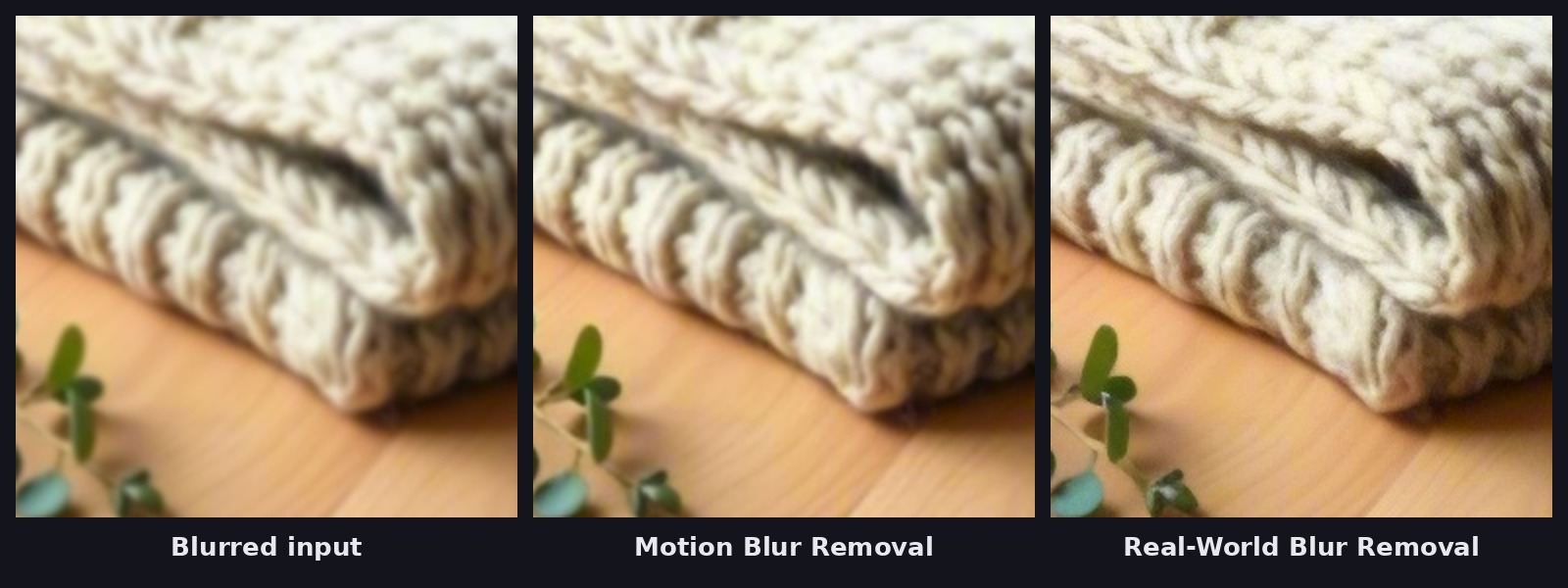
Motion Blur Removal firms up the edges of the knit in a few seconds. Real-World Blur Removal goes further and rebuilds individual strands of yarn, in about two minutes including model loading. On a soft photo like this one, the slower model is the one to keep.
Try the blur removal models in cnaps studio →
How to do it in cnaps studio
- Upload the photo into a new flow.
- Add the fix for the main problem first. Use Motion Blur Removal for streaks or Real-World Blur Removal for overall softness.
- Clean up noise before enlarging. If the photo is grainy, put Image Denoiser before the upscaler so the upscaler enlarges detail instead of grain.
- Upscale last. Add an upscaler at the end if you need a bigger file.
- Compare with the original. Line the result up against the input in Image Compare at 100% zoom.
What AI deblurring can and cannot do
A deblur model reconstructs detail from patterns it learned in training. On fabric, foliage, and texture, that usually looks natural. On text, faces, and fine patterns, check the result closely, because a model can produce detail that looks sharp but differs from what the camera actually recorded. For photos where exact detail matters, such as documents or evidence, keep the original alongside the restored version.
Fixing a folder of photos
Once a flow fixes one photo, it fixes the rest the same way. Batch Run, available from the Starter plan, sends a whole folder through the same flow, and the flow can be called through the API or MCP, for example from Claude.
The free plan includes every restoration and upscaling model, runs one job at a time, and watermarks output. Paid plans start at $20 a month with Starter, which removes the watermark and adds Batch Run.
Fix your first blurry photo on cnaps studio and compare the result with the original.
FAQ
Can I fix a blurry photo for free on cnaps studio?
Yes. Motion Blur Removal, Real-World Blur Removal, Image Denoiser, JPEG Quality Restoration, and all six upscalers are on the free plan. Free output carries a watermark and runs one job at a time. Paid plans start at $20 a month with Starter, which removes the watermark and adds Batch Run.
Which cnaps studio model should I use for a blurry photo?
Use Motion Blur Removal when edges smear in one direction from camera shake or a moving subject. Use Real-World Blur Removal when the whole photo is evenly soft. If you are not sure, run both in one flow and compare them with the original in Image Compare.
Can I fix a blurry and noisy photo in one step?
Yes. Chain Image Denoiser, a deblur model, and an upscaler in one flow and run it once. Save the flow and reuse it on every photo with the same problem, or run a whole folder through it with Batch Run from the Starter plan.
Is there a size limit for Real-World Blur Removal?
Real-World Blur Removal works best on images under 2K and takes about one to three minutes per image. For larger photos, deblur at a smaller size first and add an upscaler afterwards in the same flow.
