Best Topaz Photo AI Alternatives for Noisy and Blurry Photos: Browser, Desktop, and One-Time Options (2026)
Updated October 29, 2026
This guide compares five ways to clean up noisy, blurry, or low-resolution photos without Topaz Photo AI: cnaps studio, DxO PureRAW, Adobe Lightroom Denoise, ON1 NoNoise AI, and Upscayl. Each one is compared on which fixes it covers, which file types it accepts, what it costs at low volume, and what you give up next to Topaz Photo. In short, the separate steps Topaz Photo bundles together (denoise, sharpen, and upscale) are now available on their own, some as one-time purchases and some in a browser. If you want to run those steps in a chain without installing anything, cnaps studio does it on its free plan. Topaz Photo fits better if you need its face recovery or want every fix behind one automatic pass.
Why people look for an alternative
The reasons fall into four groups, and they lead to different tools.
How it is priced. Topaz Photo is sold by subscription, on its own or inside the $399-a-year Topaz Studio bundle. Some photographers would rather pay once, and others only need it a few times a month.
Which fix they need. Many people only ever use one part of Topaz Photo, usually denoise. A tool that does that one step well can be enough.
File type. Some tools work on RAW data before conversion, and others work on finished images. People cleaning up JPEGs, screenshots, or scans need the second kind.
Where the work happens. Some want a desktop app with a Lightroom plugin. Others want a browser tool with nothing to install, or an API that can run the same fix on every photo in a folder.
How we compared
We compared every tool on the same five fields: what it is best for, how it differs from Topaz Photo, what you give up, what it costs at low volume, and how much effort switching takes.
Details for each tool come from its official product, pricing, and documentation pages, checked October 29, 2026. Model specifications for cnaps studio come from our own model documentation and a test run on the same day.
The comparison images in this post show cnaps studio models only. We did not run the other tools for them.
Comparison at a glance
Switching effort is low for most of these, because a photo fix has no project files to migrate. The real change is workflow: a plugin keeps the fix inside your editor, while a standalone tool or a browser adds an export and re-import.
The five alternatives
cnaps studio
Best for: fixing noise, blur, and low resolution in one pass, with nothing to install.
Why choose it over Topaz Photo: it gives each fix its own model and lets you chain them in one flow, all on the free plan:
- Image Denoiser removes grain and high-ISO noise, with presets for light, moderate, and heavy noise.
- Motion Blur Removal sharpens photos softened by camera shake or a moving subject.
- Real-World Blur Removal rebuilds detail in blurred photos with a diffusion model, for the shots that matter most.
- JPEG Quality Restoration clears blocky compression artifacts from images saved for the web or social media.
- Six upscalers, from SMFANet+ for fast batches to PiSA-SR for added texture, enlarge the cleaned result.
Because each fix is a separate step, you can choose which ones a photo needs and in what order, then save that chain and reuse it.
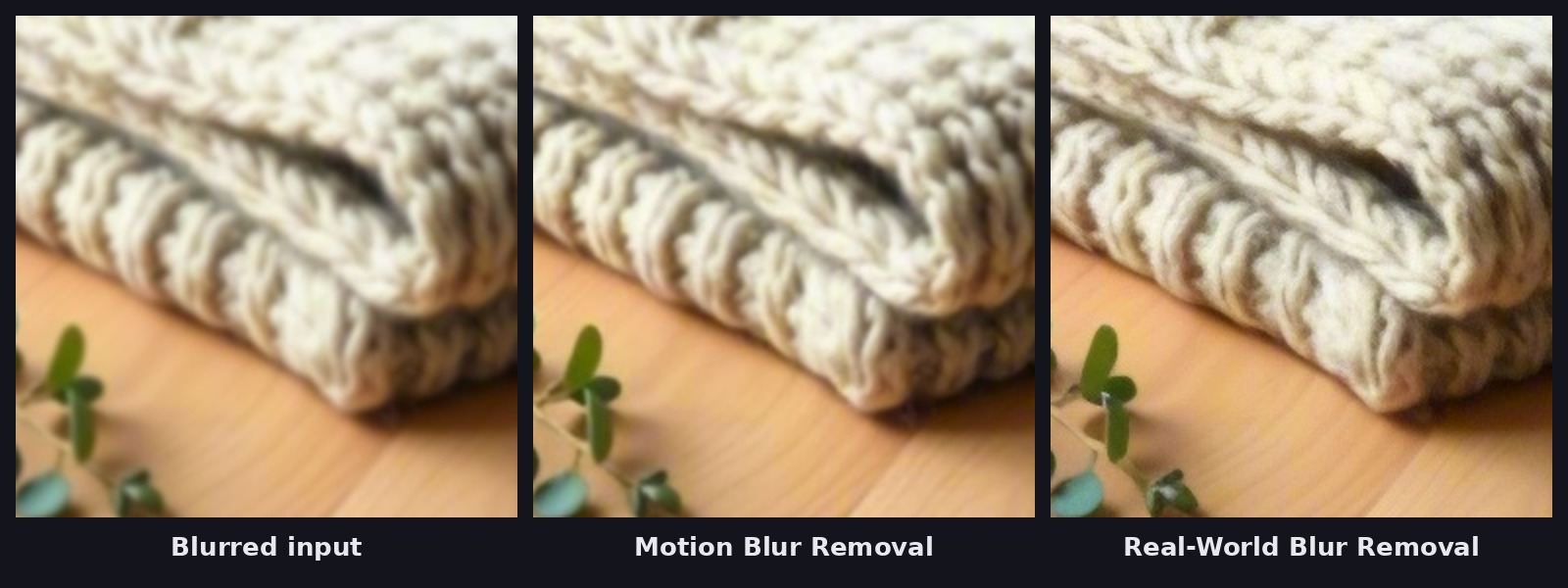
Motion Blur Removal firms up the edges of the knit in a few seconds. Real-World Blur Removal goes further and rebuilds individual strands of yarn, in about two minutes including model loading, which is why it is the one to keep for the shots that matter most.
The same flow runs on a whole folder with Batch Run, available from the Starter plan, and can be called through the API or MCP, for example from Claude. That turns a cleanup you would do photo by photo into one run over a catalog.
What you give up: face recovery, the Lightroom and Photoshop plugins, and RAW-level processing such as demosaicing and lens corrections. Your files are processed in the cloud.
Price and limits: the free plan includes every restoration and upscaling model, runs one job at a time, and watermarks output. Paid plans start at $20 a month with Starter, which removes the watermark and adds Batch Run.
Switch if you clean up JPEGs, product photos, or web images in volume, or want denoise and upscale in one run. Stay on Topaz Photo if you restore portraits or edit RAW files inside Lightroom.
Try the restoration models in cnaps studio →
DxO PureRAW
Best for: RAW shooters who want the cleanest possible file before they start editing.
Why choose it over Topaz Photo: PureRAW works on the RAW data itself, applying noise reduction and lens corrections before the image is converted, and hands back a DNG that opens in Lightroom, Capture One, or Photoshop. It runs as a standalone batch tool or from inside Lightroom Classic.
What you give up: JPEG and TIFF support, since PureRAW only processes RAW files, and any upscaling.
Price and limits: $139.99 for a perpetual license, with a 14-day free trial.
Switch if you shoot RAW at high ISO and mostly need denoise. Stay on Topaz Photo if you also need upscaling or work with JPEGs.
Adobe Lightroom Denoise
Best for: photographers who already edit in Lightroom or Lightroom Classic.
Why choose it over Topaz Photo: AI Denoise is built into Lightroom, so there is no new app, no plugin, and no export.
What you give up: denoise on JPEGs and other finished images, since Denoise works on raw files, plus upscaling beyond Super Resolution's 2x and any use outside Adobe's apps.
Price and limits: included with Adobe's Lightroom and Photography plans.
Switch if denoise is the main reason you open Topaz Photo and you already pay for Lightroom. Stay on Topaz Photo if you rely on its sharpening and upscaling.
ON1 NoNoise AI
Best for: a one-time denoiser that works on almost any file type.
Why choose it over Topaz Photo: it accepts RAW, DNG, TIFF, JPEG, PNG, PSD, and HEIC, includes TackSharp AI for deblurring alongside noise reduction, runs standalone or as a plugin for Lightroom Classic, Photoshop, Capture One, and more, and is sold as a perpetual license.
What you give up: upscaling.
Price and limits: $69.99 list price for a perpetual license, often discounted (it was $49.99 when we checked), with a 30-day free trial.
Switch if you want a paid-once denoiser that fits into the editor you already use. Stay on Topaz Photo if you also need upscaling in the same app.
Upscayl
Best for: free, unlimited upscaling on your own machine.
Why choose it over Topaz Photo: it is free and open source, with no account, no watermark, and no usage cap, and it can upscale a whole folder at once on Windows, macOS, or Linux.
What you give up: denoise and deblur. Upscayl only enlarges, and its own documentation says it is the wrong tool for blurred or out-of-focus images.
Price and limits: free under AGPLv3. It needs a Vulkan-compatible graphics card.
Switch if upscaling is the only part of Topaz Photo you use and you have a capable GPU. Stay on Topaz Photo if your photos need cleaning before they are enlarged.
When to keep Topaz Photo
Some readers should not switch at all.
Keep it if you restore portraits and rely on its face recovery. Keep it if you want denoise, sharpen, and upscale behind a single automatic pass inside Lightroom or Photoshop. And keep it if you already pay for Topaz Studio and use Gigapixel or Video AI as well.
You also do not have to pick one. A common setup is a RAW denoiser such as PureRAW or Lightroom Denoise at the start of the edit, and cnaps studio for finished images that need cleanup and enlarging in volume: product photos, web images, and old scans. For the upscaling side of this decision, see our Topaz Gigapixel alternatives guide.
Before you switch: a short checklist
- Pick ten photos that show your usual problems: high-ISO noise, camera shake, heavy JPEG compression, small originals.
- Run each one through the candidate tool with the fix it actually needs, and nothing more.
- Compare at 100% zoom on fine detail such as hair, fabric, or foliage, where over-smoothing shows first.
- Check whether the tool accepts your file type, RAW or finished image.
- Check the free tier against your volume: image count, resolution, and watermark.
- If you edit in Lightroom or Photoshop, time the export and re-import round trip once.
Run one of those photos through denoise and upscale on cnaps studio and compare the result with the original in a single Image Compare view.
FAQ
Which photo restoration models does cnaps studio have?
Five restoration models are available on every plan, including free: Image Denoiser, Motion Blur Removal, Real-World Blur Removal, JPEG Quality Restoration, and Image Colorization for black-and-white photos. They pair with six upscalers, so a photo can be cleaned and enlarged in the same flow.
Which denoise setting should I use in cnaps studio?
Image Denoiser has three presets. Use 15 for light noise from a clean phone photo, 25 for moderate noise, and 50 for heavy low-light or high-ISO grain. Picking a preset close to the real noise level matters, since a setting that is too strong smooths away fine detail.
Can I denoise and upscale a photo in one step in cnaps studio?
Yes. Connect Image Denoiser to any of the six upscalers in one flow and run it once. The denoiser cleans the photo first, so the upscaler enlarges detail instead of noise. Save the flow and reuse it on every photo with the same problem.
Can I clean up a whole folder of photos at once?
Yes. Batch Run is available from the Starter plan and sends a set of photos through the same flow in one go. You can also call the flow through the API or MCP, for example asking Claude to denoise and upscale a set of images.
