Upscale a 512 × 512 image to 2048 × 2048 in your browser, without installing ComfyUI or downloading model files. In this guide, you'll open a ready-made CNAPS Studio flow, try three upscalers and compare what they change.
Our ComfyUI alternatives comparison covers which tool to choose. Here, we'll use CNAPS Studio, which we build, for one specific task: a 4× image upscale.
See the results first
We used one AI-generated image of a pocket watch and ran it through PiSA-SR, Swin2SR and SMFANet+, all set to 4×. Each output measured 2048 × 2048 pixels.
ORIGINAL (512px)

PiSA-SR 4x

Swin2SR 4x

SMFANet+ 4x

One AI-generated input, three 4× outputs. The original is 512 × 512; each output is 2048 × 2048. Click an image to open its file at full size.
On this image, PiSA-SR produced the sharpest-looking wood grain, leaf veins and watch rim. Swin2SR and SMFANet+ looked very similar to each other, with softer detail.
But sharper does not mean more accurate. PiSA-SR also changed the small, already artificial lettering on the watch face.

Left: the 512px original enlarged for comparison. Middle: Swin2SR retains more of the original lettering's appearance. Right: PiSA-SR makes the edges crisper, but changes the lettering under the hands.
This is one AI-generated example, not a ranking of the models. If your image has a label, logo, face or text that must stay accurate, check those areas closely.
Open the 4× upscale comparison flow →
Sign in with a free account to open the shared flow. No card required. All three models are available on Free, subject to the plan's GPU allowance; Free outputs carry a watermark. See current plan details.
Upscale your own image without installing ComfyUI
The shared flow already includes the three upscalers and an Image Compare node, so you can start with your own image.
- Open the shared upscale flow and sign in.
- Replace the pocket watch image in Image Loader with your image.
- Check that Upscale ratio is set to 4 on PiSA-SR, Swin2SR and SMFANet+.
- Click Run.
- Compare the outputs in Image Compare. Inspect small details, then use the download control on the corresponding Image Viewer to save your chosen result.
A 4× upscale multiplies both width and height by four: 512 × 512 becomes 2048 × 2048.
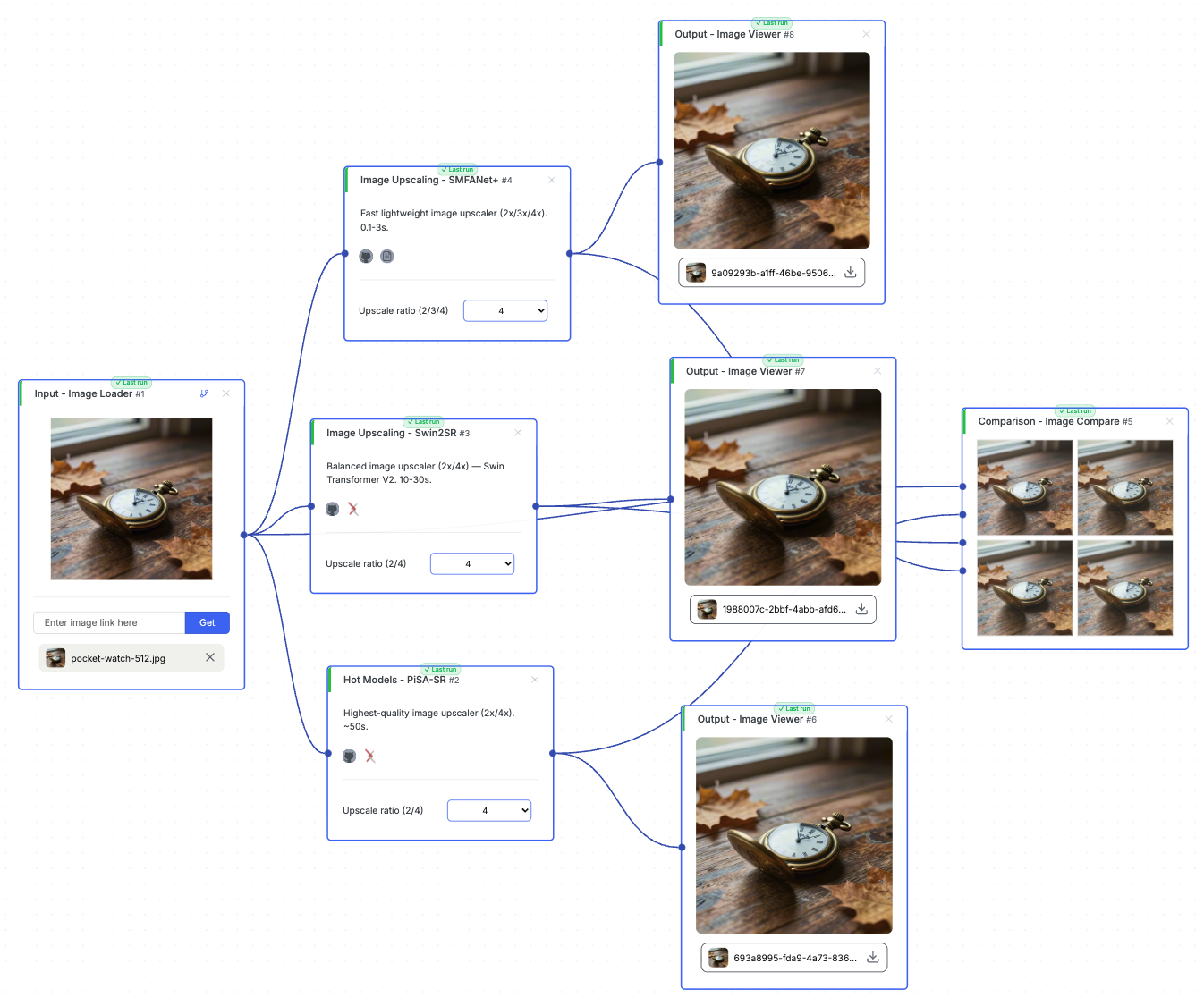
One Image Loader feeds three upscalers, each set to 4×. The original and outputs feed Image Compare; Image Viewers provide individual outputs.
In our test run on October 15, 2026, the whole flow took about 68 seconds, with the three models running one after another. That is one run on a 512 × 512 image, so yours may take longer.
Prefer to build a smaller flow?
Start a new flow in CNAPS Studio. Add Image Loader, connect it to PiSA-SR, set Upscale ratio to 4, then connect the result to an Image Viewer and click Run.
CNAPS still uses a node graph. The convenience here is that each hosted upscaler is a model node: you choose the model without managing its model file or a separate model loader.
Which of the three should you try?
Try all three on your own image to decide. We did not time each model separately or test large images.
How local ComfyUI handles the same task
For a local setup, ComfyUI's official image upscale tutorial uses this process after installation:
- Download the 4x-ESRGAN model from OpenModelDB.
- Place the
.pthfile inComfyUI/models/upscale_models. - Load the tutorial workflow and select the model in Load Upscale Model.
- Load your image and run the workflow.
You can also build branches to compare several models in one ComfyUI workflow. Each model needs to be available and selected in its branch; you do not need three separate runs.
This compares setup steps only. All outputs above came from CNAPS Studio. We did not run ComfyUI locally, and its tutorial uses a different model.
Installation steps vary by ComfyUI distribution; desktop and portable versions reduce some environment setup. If ComfyUI is already installed and working for you, this basic upscale may be straightforward there too.
When ComfyUI is the better fit
Keep local ComfyUI if you need a particular custom node, checkpoint or LoRA, want detailed control over the workflow, or need to keep processing on your own machine.
Installation is also not required for every version of ComfyUI. Comfy Cloud runs it in the browser with preinstalled models and custom nodes. It's another option if you want to keep the ComfyUI workflow. We did not test its upscaling templates for this article.
Try the comparison on your own image
Open the flow, replace the input and compare the three results. Pick the output that fits your image, checking important details as well as sharpness.
Run the 4× upscale comparison flow →
A free account is required to open it. Free outputs carry a watermark and runs use your available GPU allowance.
Still choosing a tool? Read 5 ComfyUI Alternatives in 2026.
