Have a photo you like, but only a small copy that looks soft when enlarged? CNAPS Studio’s Rescue Low-Quality Images card enlarges your image to four times its original width and height with a prepared task. You do not need to write a prompt or build a flow.
You can start with 3 free runs across all CNAPS Studio cards without an account. A free plan is also available after signup. Sign in to download your result.
See the difference in a windswept portrait
In this example, the input is a small portrait of a smiling woman beside the sea. Her hair blows across a pale blue background, and she is wearing white.
At the same display size, the original looks soft around the hair and facial features. In the upscaled sample, individual strands of hair and the edges around the eyes and smile appear more defined. The overall composition remains similar, making these areas useful places to compare.
Look at the original and the actual upscaled sample side by side below.

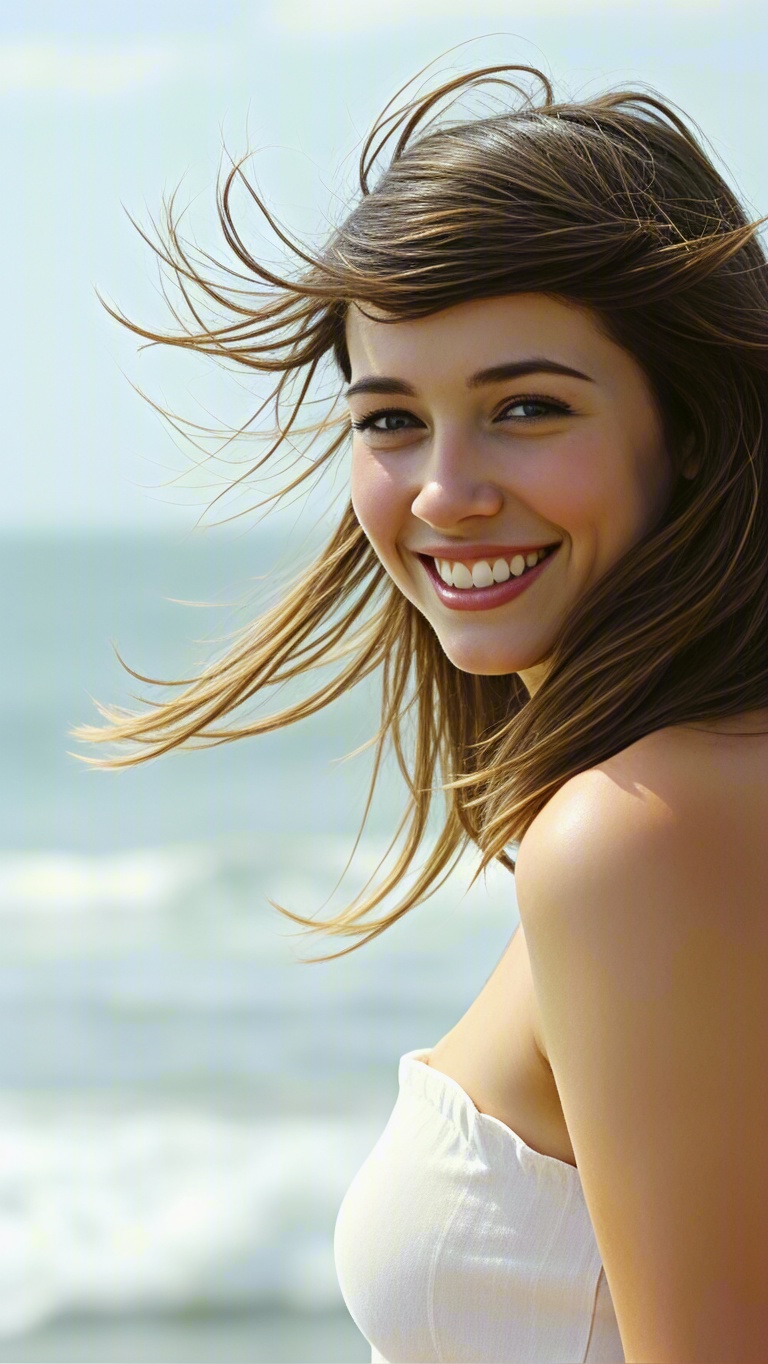
Original image and actual upscaled sample, shown at the same display size. Select either image to open the original file.
How to try it
- Open the card. Go to Rescue Low-Quality Images.
- Explore the sample. Drag the comparison slider to inspect the original and upscaled versions of the portrait.
- Choose your image. In Input, remove the sample file if it is present, then upload a PNG, JPG, or WebP image. The card recommends images at 2K or smaller; larger images take longer to process.
- Run and review. Click Run. The card lists a usual wait of 10 seconds to 1 minute. Compare the result with your original, especially around edges and fine details.
- Download your result. Sign in to download the image you want to keep.
What should you check in the result?
Start by looking at the image at the size you plan to use. A picture for a small social post and one for a larger page may need different levels of detail.
Then inspect a few specific areas. In a portrait, look at the eyes, teeth, skin, and loose strands of hair. For a product photo, check the outline, label, and any small lettering. You want the result to look clearer while still representing the subject as you intended.
Treat newly defined details as something to review, rather than proof of exactly what was in the original scene. Keep your original file so you can compare the two before using the upscaled version.
Do I need a prompt or editing experience?
No. This card takes an image as its input. Upload your photo and use the prepared task; there is no text prompt to write or model setup to complete.
Can I download without an account?
You can try the card without an account, but you need to sign in to download your result.
Should I use this or compare several upscalers?
Use this card when you want one upscaled result from PiSA-SR. If you would rather compare different model outputs for the same image, try Compare Three Image Upscalers.
Try Rescue Low-Quality Images →
Start with the portrait example, then give one of your own small images a closer look.
