We tested five upscalers on six public-domain 360 panoramas, comparing the ±180° seam, the poles and ordinary detail.
PanoSharp is our product. This comparison includes it alongside Topaz Gigapixel, Topaz Image Web, Upscayl and chaiNNer.
A panorama can look sharper in Photoshop and still look worse in a headset. A general-purpose upscaler may introduce a line where the image wraps around, or turn the stretched pixels at the poles into distorted ground texture. For 360 work, those problems matter as much as sharpness.
The short list
Our pick for 360 work is PanoSharp. It exceeded our seam threshold in 1 of 18 checks, matching the untouched source’s count, against 4 to 17 for the general-purpose tools. It synthesises new pole texture to match the surrounding surface and delivers a 32,768 × 16,384 master plus six 8K cubemap faces.
Choose among the other four according to your workflow:
- Topaz Gigapixel for general photography. A desktop option that reached 32,000 × 16,000 in our test, with no documented seam or pole handling.
- Topaz Image Web for a browser workflow. The fewest flagged seam checks among the general-purpose tools, but the smallest output in our test: 16,384 × 8,192.
- Upscayl for free offline upscaling. It reached 32,768 × 16,384, though seam and pole artifacts remained.
- chaiNNer for a custom workflow. Its node graph lets you add circular padding before upscaling instead of repairing the seam afterward.
For virtual tours, real estate and archives, generated texture can be a liability even when it looks convincing. For game skyboxes and AI-generated 360 art, surface consistency may matter more. Choose on that basis as well as output size.
How we tested
We used six 8K equirectangular panoramas from ambientCG, all CC0: DayEnvironmentHDRI028, DayEnvironmentHDRI088, EveningEnvironmentHDRI003, IndoorEnvironmentHDRI009, IndoorEnvironmentHDRI016 and IndoorEnvironmentHDRI022. The figures shorten these to Day-028, Day-088, Evening-003, Indoor-009, Indoor-016 and Indoor-022.
Three scenes are indoors and three outdoors. Each tool received the same tone-mapped image converted to PNG, about 50 MB per frame. These are tests of visible panorama images, not HDR lighting data.
We ran one pass per tool with no per-scene tuning or face-recovery modes:
- PanoSharp (Default): 32,768 × 16,384
- Topaz Gigapixel (Standard): 32,000 × 16,000
- Topaz Image Web (Wonder 3.5): 16,384 × 8,192
- Upscayl (Standard): 32,768 × 16,384
- chaiNNer (Real-ESRGAN): 32,768 × 16,384
The exact Real-ESRGAN model file used in chaiNNer was not recorded, so that configuration cannot be reproduced exactly from this description.
Each comparison panel shows the same field of view at the same display size. The labels or captions give the width that region occupies in each native output; smaller crops are enlarged more for display. The detail regions were selected by texture density in the source, away from the seam and poles, before inspecting the outputs.
1. Seam continuity
The left and right edges of an equirectangular image meet when it is wrapped onto a sphere. Processing them as separate picture borders can create a visible discontinuity at the join.
We checked each scene at three latitudes: 45° above the horizon, the horizon, and 45° below. Across those eighteen checks, Gigapixel and Upscayl exceeded our seam threshold seventeen times, chaiNNer sixteen, Image Web four, and PanoSharp one. The untouched source also exceeded it once.
A check was flagged when the luminance step across the join exceeded twice the mean neighbouring-column step in the eight columns on either side. Several checks lie near that threshold, so changing it changes the counts.
PanoSharp and the source were flagged at the same location: the equator of Indoor-016. That co-occurrence does not establish whether PanoSharp preserved or altered the original step. These counts describe the six scenes and configurations tested; they are not a general failure rate or a ranking across other models and scale factors.
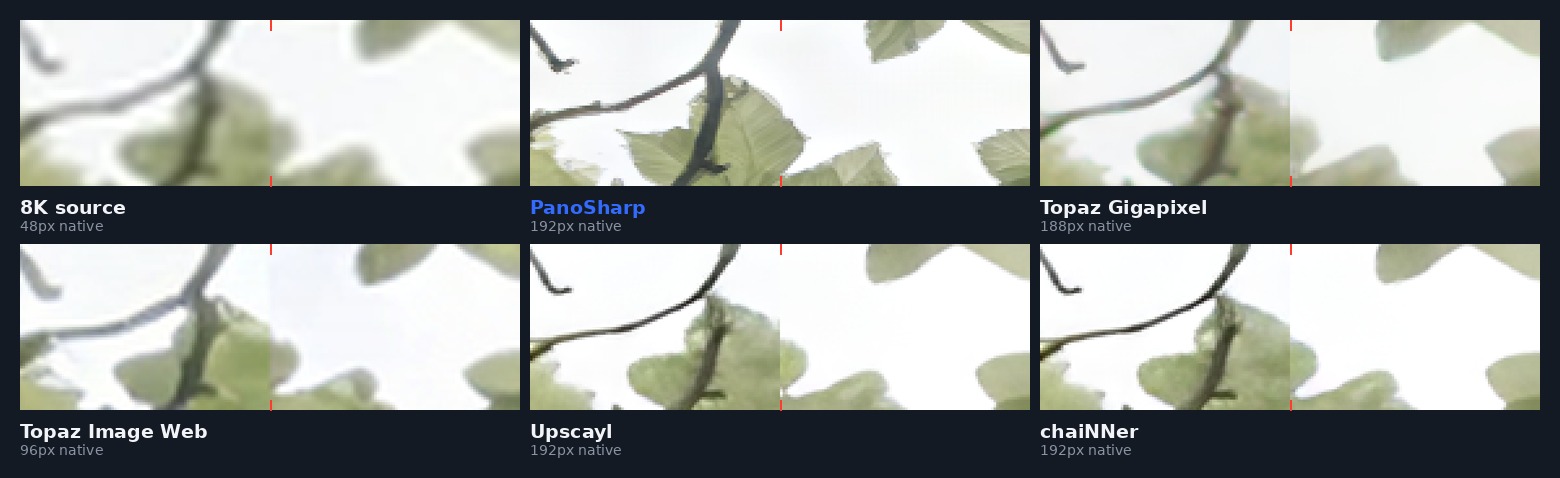
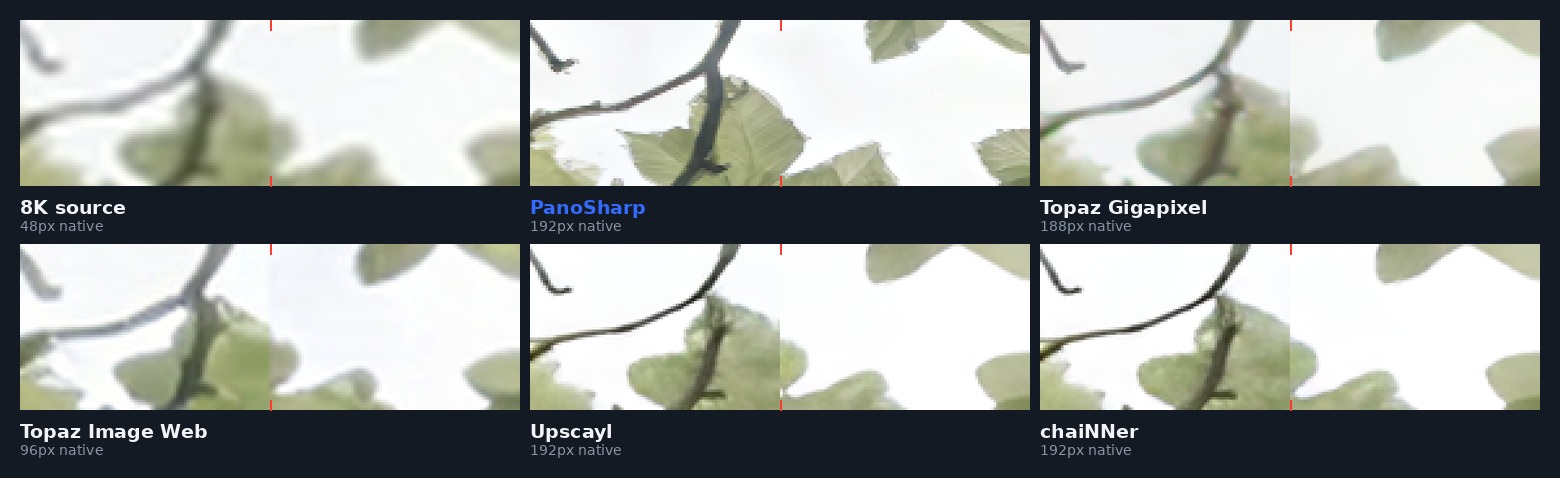
Day-028 seam comparison. Four of the five upscalers show a visible brightness step down the centre. The source and PanoSharp do not in this crop. Native widths range from 48 px for the source to 192 px for the largest outputs; the displayed region is the worst part of this join. At column width this figure is about half its real size — view it full size to see the step clearly.
The example is enlarged to reveal a defect that is difficult to see at normal still-image viewing size. In a headset, panning across a discontinuity can make it more noticeable.
Image Web disturbed the seam less often than the other general-purpose configurations. It also ran at 2× while the others ran at roughly 4×. This test cannot separate the effect of scale factor from the effect of the model.
2. Pole texture
Near the zenith and nadir, an equirectangular image stretches a small region across a wide row of pixels. Sharpening that stretched texture can produce patterns that look wrong once projected back onto a sphere.
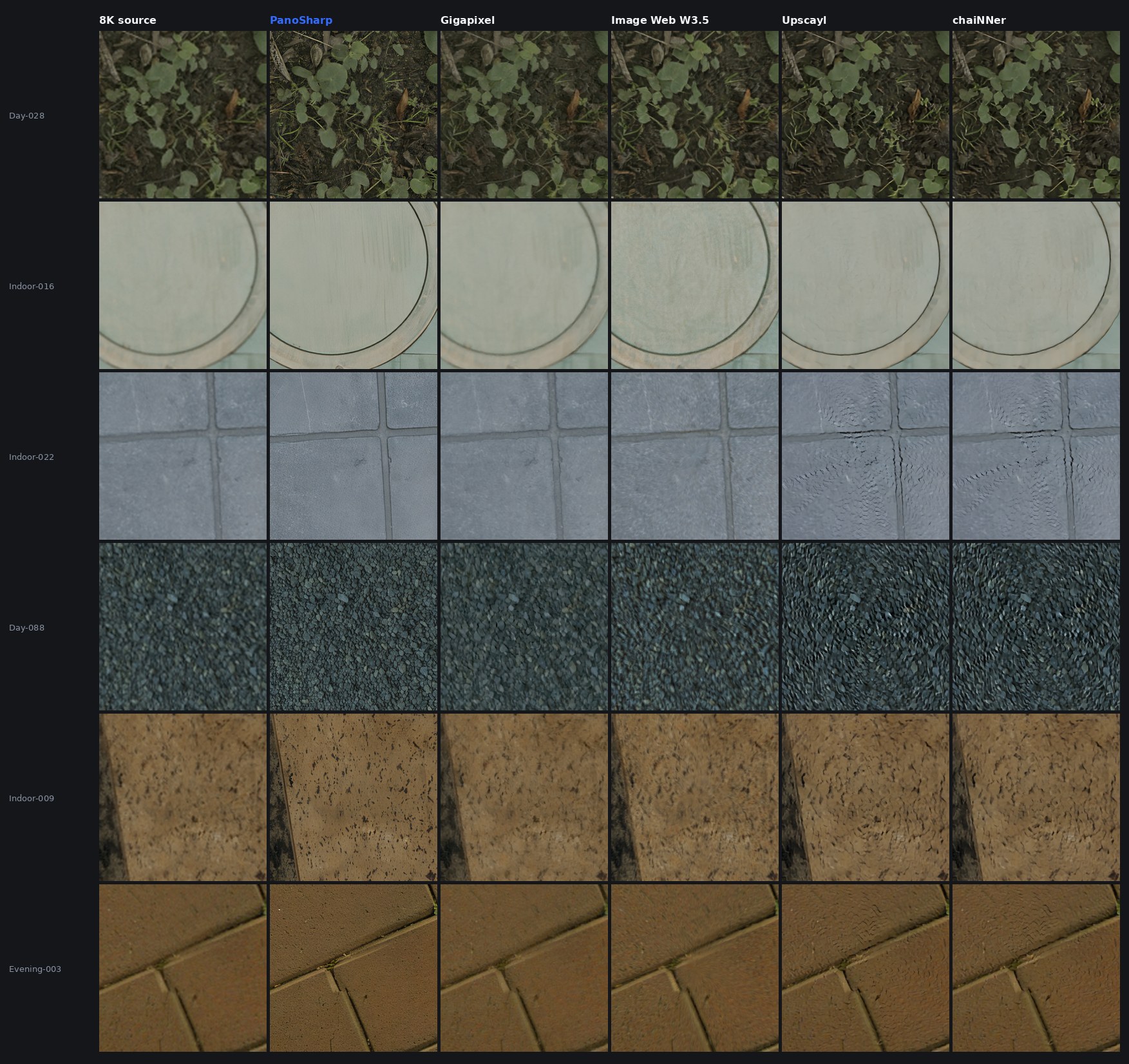
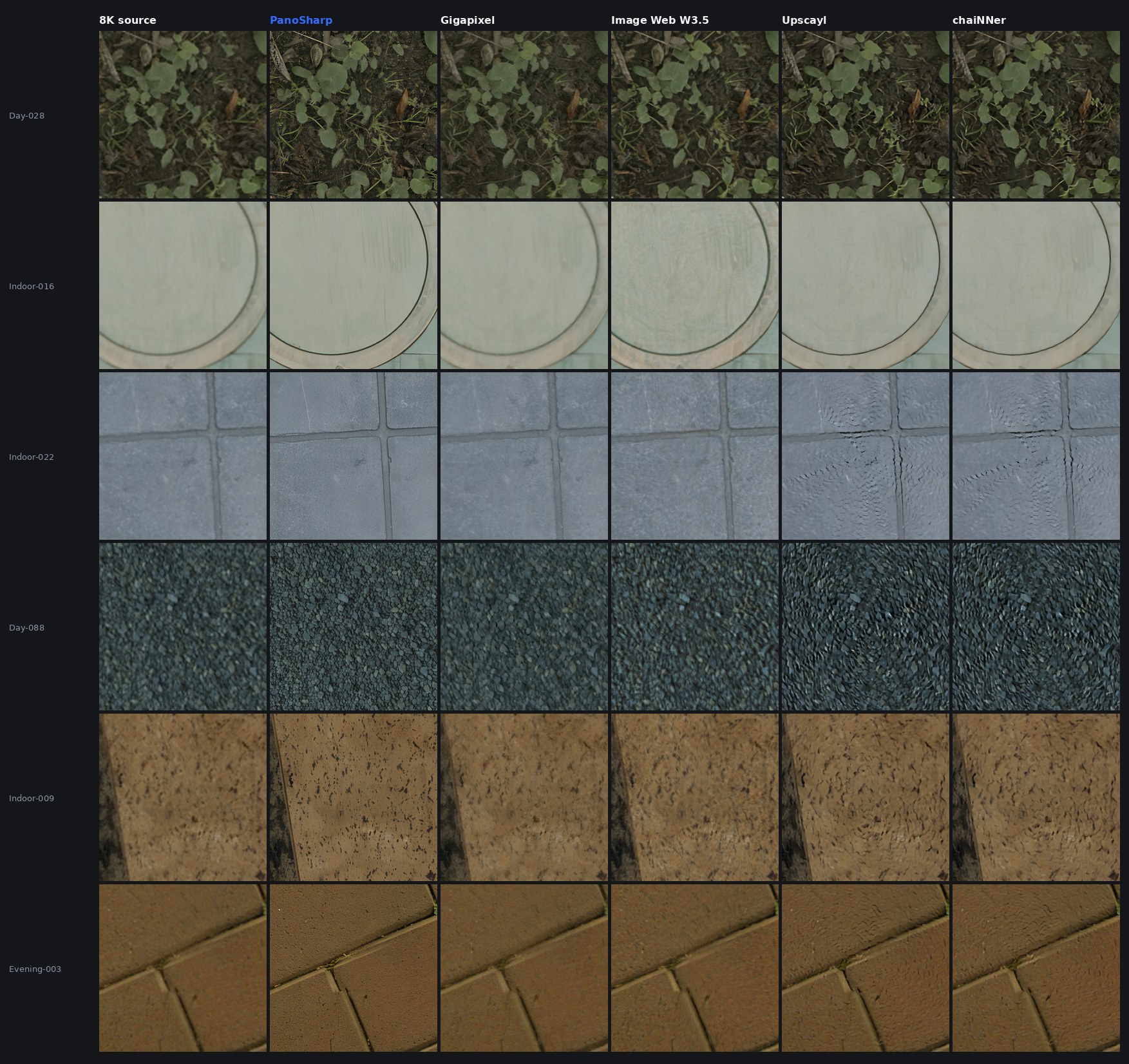
Looking straight down across all six scenes. Native crop widths are 128 px for the source, 256 px for Image Web and about 500 px for the other outputs. Indoor-016, the second row, is a smooth surface with less visible separation between tools. View full size.
Upscayl and chaiNNer produced directional scales and swirl-like patterns in gravel and floor tile. Gigapixel and Image Web looked softer; we did not observe obvious new structures in those crops.
PanoSharp synthesises pole texture to match the surrounding surface. That texture is generated, not recovered from the 8K file. A plausible surface is not proof of the original surface, which matters for property documentation and archival work.
The nadir exposed more differences in these scenes because ground has texture. Check it in a 360 viewer, looking straight down. The stretched bottom of the flat file is a poor substitute for that view.
3. Ordinary detail
Away from the seam and poles, the differences depend more on the scene. Brick separates the tools; bare branches against a bright sky barely do.
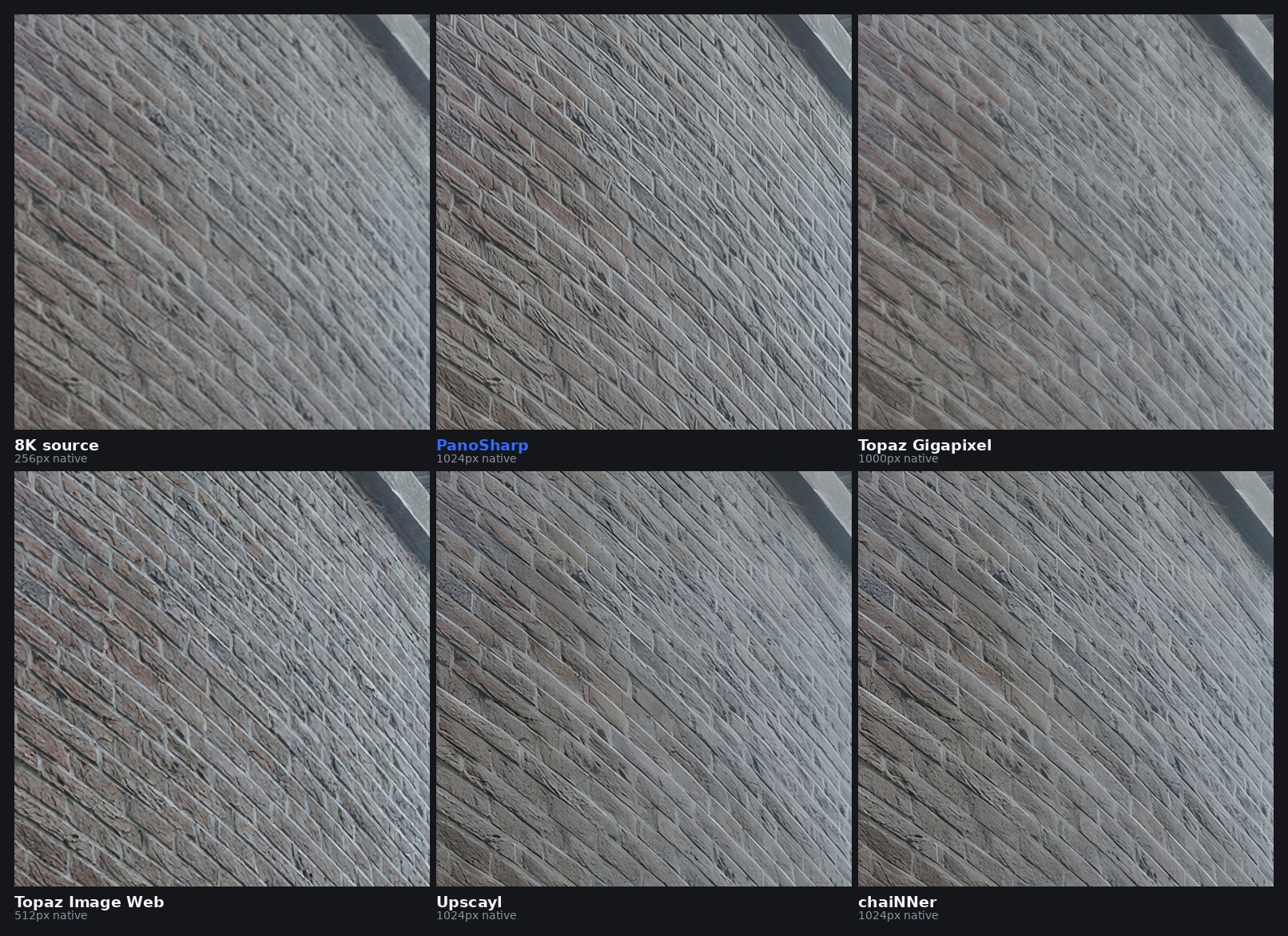
Indoor-022 brick. PanoSharp renders distinct mortar lines and surface grain. Gigapixel looks smoother, Image Web is the softest of the five, and Upscayl and chaiNNer fall between them with a slightly waxy appearance.
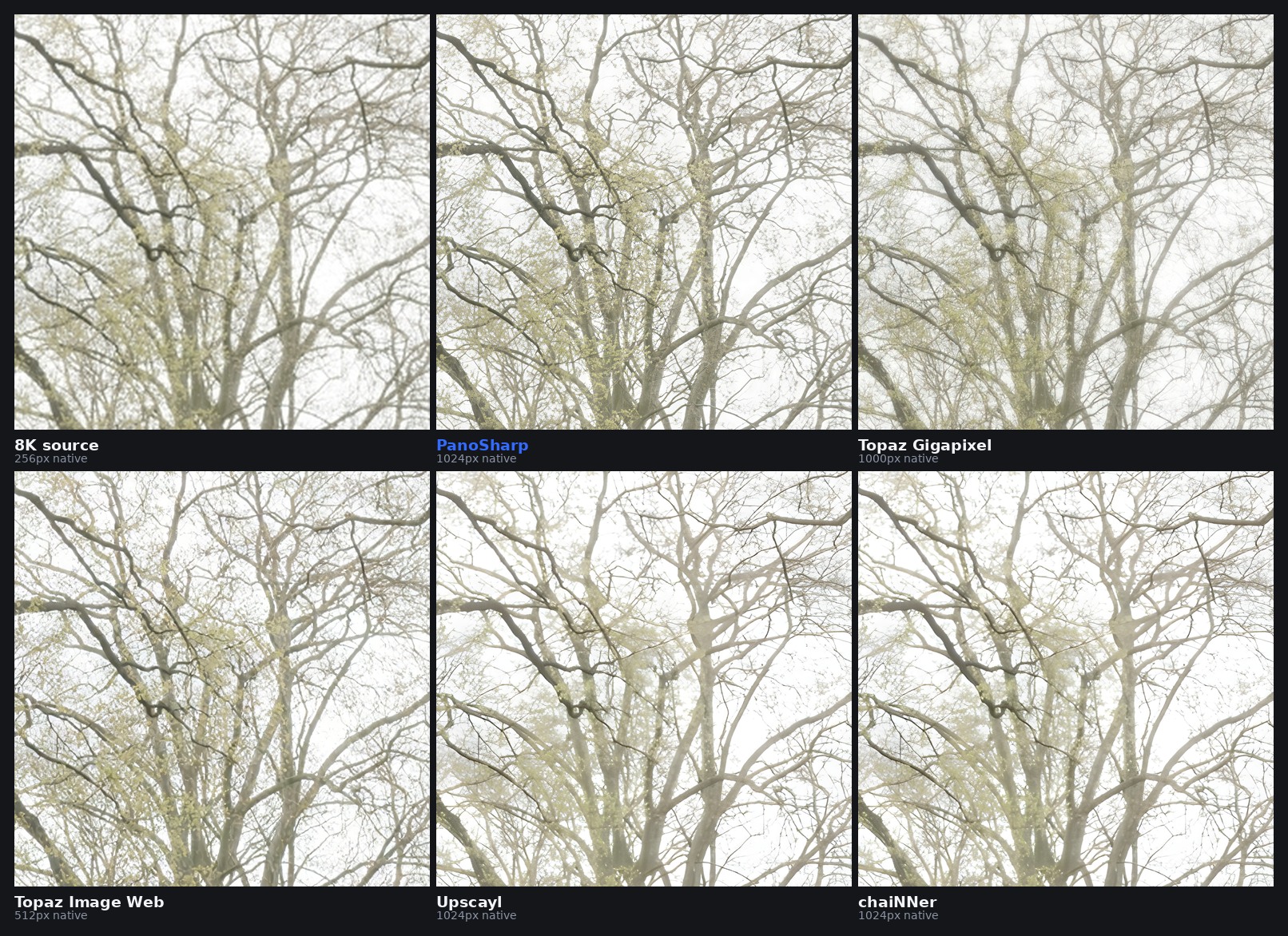
Day-028 branches. We see little meaningful separation between the five upscalers on these thin, high-contrast lines.
The shop comparison shows a middle case: all five resolve the signage and hangers, with smaller differences in fabric and metal.
Without a higher-resolution reference, these figures show differences in apparent detail, not which output is closest to the real scene. A sharper-looking result can contain generated texture.
The tools in detail
PanoSharp for dedicated 360 work
PanoSharp is our enterprise service for 360 stills and video. It works on spherical geometry, with processing designed to preserve the wrap and to synthesise pole texture from the surrounding surface rather than sharpen stretched pixels. Delivery includes the 32K master and six 8K cubemap faces for workflows that use cube maps.
It is our pick when seam continuity, pole appearance and 360 delivery are central to the job. It is not a desktop download. If most of your work is ordinary photography, a general-purpose tool is likely a better fit.
Topaz Gigapixel for general photography
Gigapixel combines a desktop workflow with large output sizes. The Standard configuration in this test produced softer pole texture and more flagged seam checks than PanoSharp or Image Web, so check the spherical view before delivering a panorama.
Topaz documents the maximum upscale as “a dimension of 32,000 pixels on the longest edge, or a file size of 2 GB; whichever comes first”. That explains our 32,000 × 16,000 output rather than a full 32,768 × 16,384.
A frame that size is 512 MP. In the Apple Silicon section of its system requirements, Topaz specifies 128 GB RAM for outputs of 256 MP or more. The Windows tables do not state that same requirement. Check the requirements for your platform before buying for large panoramas.
Topaz Image Web for a browser workflow
Image Web needs no local rendering hardware. Wonder 3.5 returned 16,384 × 8,192 from our 8K input, with fewer flagged seam checks than the other general-purpose configurations.
The trade-off is output size: about 45 pixels per degree of grid, versus about 91 for a 32,768 px master. We have not established whether the observed output is a model or service limit. Judge its suitability against your target viewer or projection system rather than treating it as a published cap.
Upscayl for free offline upscaling
Upscayl reached the same output dimensions as PanoSharp without an account or paid service. That makes it a useful starting point when cost and local processing matter, but its 32K output still needed seam and pole inspection.
In an issue about seamless tiling, a maintainer answered: “I’m pretty sure this is an issue with the models we can’t fix, unless someone manages to find a model that works on tiles.” In the documentation and discussion reviewed, we found no documented handling of the ±180° wrap.
chaiNNer for a custom pipeline
chaiNNer exposes the processing graph, making it useful when you want to build preprocessing and export steps around an upscaler. Our Real-ESRGAN run looked similar to Upscayl, including its pole artifacts.
Circular padding can supply context across the wrap before upscaling, followed by cropping back to the original field of view. Related ComfyUI conversion and padding nodes and DiT360 circular-padding work provide starting points for custom workflows. Padding alone does not address the projection at the poles.
Other upscalers to consider
These three were not included in the five-tool test, so we make no performance comparison for their seams or poles.
Let’s Enhance. Its subscription cards list output limits of 256 MP for Starter, 350 MP for Pro and 512 MP for Max. Even 512 MP is below the approximately 537 MP needed for 32,768 × 16,384. The free plan lists a 24 MP input limit, below our 8K sources.
VanceAI. We excluded it because the 10 MB upload limit recorded for our test workflow was below the roughly 50 MB PNG inputs. That exclusion concerns these inputs, not a measured quality result or every VanceAI workflow.
ImageUpscaler. Its upscaler page states that images larger than 2,000 px are reduced before upscaling. For an 8K panorama, that means discarding source resolution before enhancement, regardless of the final output size.
FAQ
What resolution does a 360 panorama need for VR?
Divide the equirectangular frame width by 360 to estimate horizontal pixels per degree. An 8,192 px panorama carries about 23 PPD, while Meta lists Quest 3 at 25 PPD. Matching 25 PPD requires about 9,000 px of frame width; 12,288 px provides about 34 PPD.
We recommend considering 16K or above for mastering margin, rather than calling it a mathematical minimum. Viewer resampling, source quality and delivery settings affect the result. Dome installations need their own resolution calculation.
A 32,768 px frame carries about 91 PPD of grid. Upscaling does not establish 91 PPD of authentic scene detail. See our 360 resolution explanation for more on the difference.
Can I fix a panorama seam with free tools?
You can reduce seam artifacts by circularly padding the input: attach a strip from the left edge to the right and vice versa, upscale, then crop back. chaiNNer and ComfyUI can support custom workflows like this. The required padding and result depend on the model; verify the join afterward.
For an existing broken output, offset the image horizontally by 50% with wrap-around to bring the seam into the centre, then blend or repair it. In Photoshop, use Filter → Other → Offset with Wrap Around.
Neither approach by itself fixes pole distortion. Inspect the nadir in a viewer and test the result in the headset or engine you will deliver to.
Does this apply to 360 video too?
The same projection issues apply, and video adds temporal consistency: seams can shimmer and generated textures can change between frames. A Topaz community request documents users encountering mismatched left and right edges after video enhancement.
Our comparisons here use still frames. For video delivery, test a representative clip as well as individual frames.
Try PanoSharp on your own frames
Send us three 360 frames and we will upscale them free. Check the seam, look straight down, and compare the result with material you already know.