Change Day to Night or Summer to Winter in a Photo (Real VR Fishing Example)
We’ve partnered with Real VR Fishing to help you imagine a familiar fishing scene in a different light. With CNAPS Studio’s Change Time and Season card, explore a lake scene from the game transformed into three starry night views—or upload your own photo and describe a different time of day, season, or weather.
The image editing happens in CNAPS Studio. Want to visit the fishing location in VR? Follow the card’s Play Real VR Fishing button to explore our partner’s game.
You need to sign in and provide your own Gemini API key to run this card. Sign in is also required to download your results.
From an autumn afternoon to a starry night
In this example, a scene from our partner Real VR Fishing shows a mountain lake surrounded by autumn trees. Sunlight reaches the rocky shore, and clouds sit above the mountain ridge.
The three sample results turn that scene into a night view, each with a different balance of sky, color, and light.
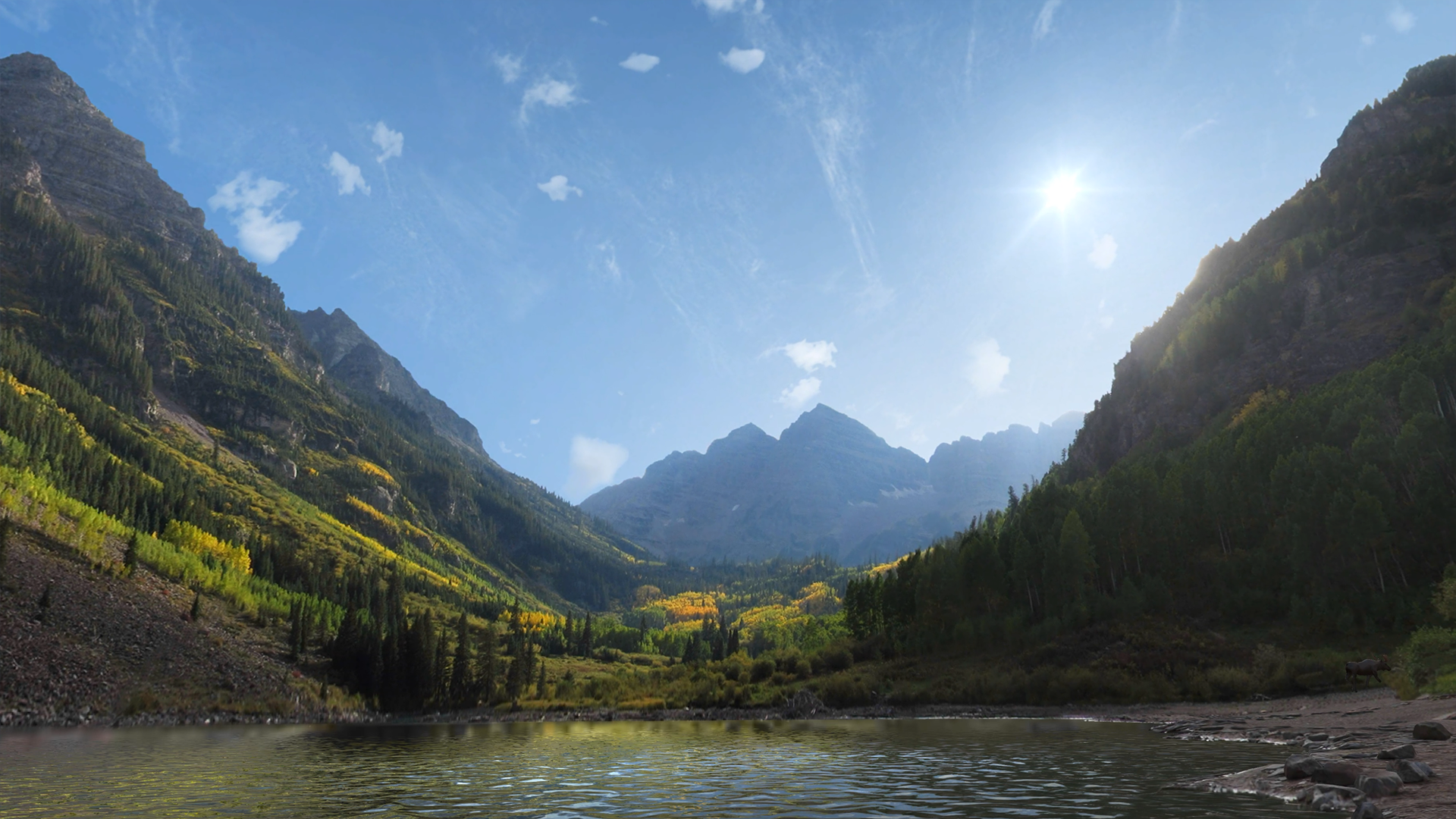
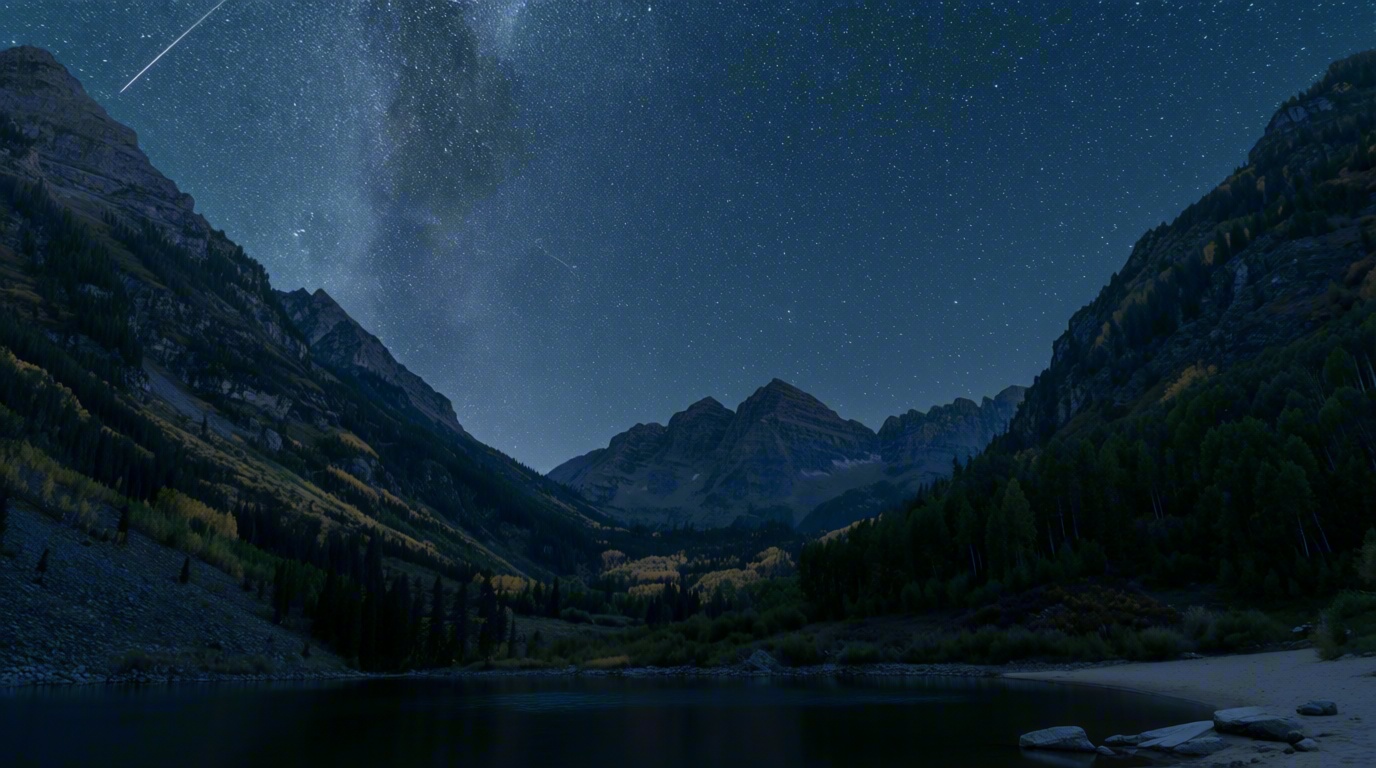
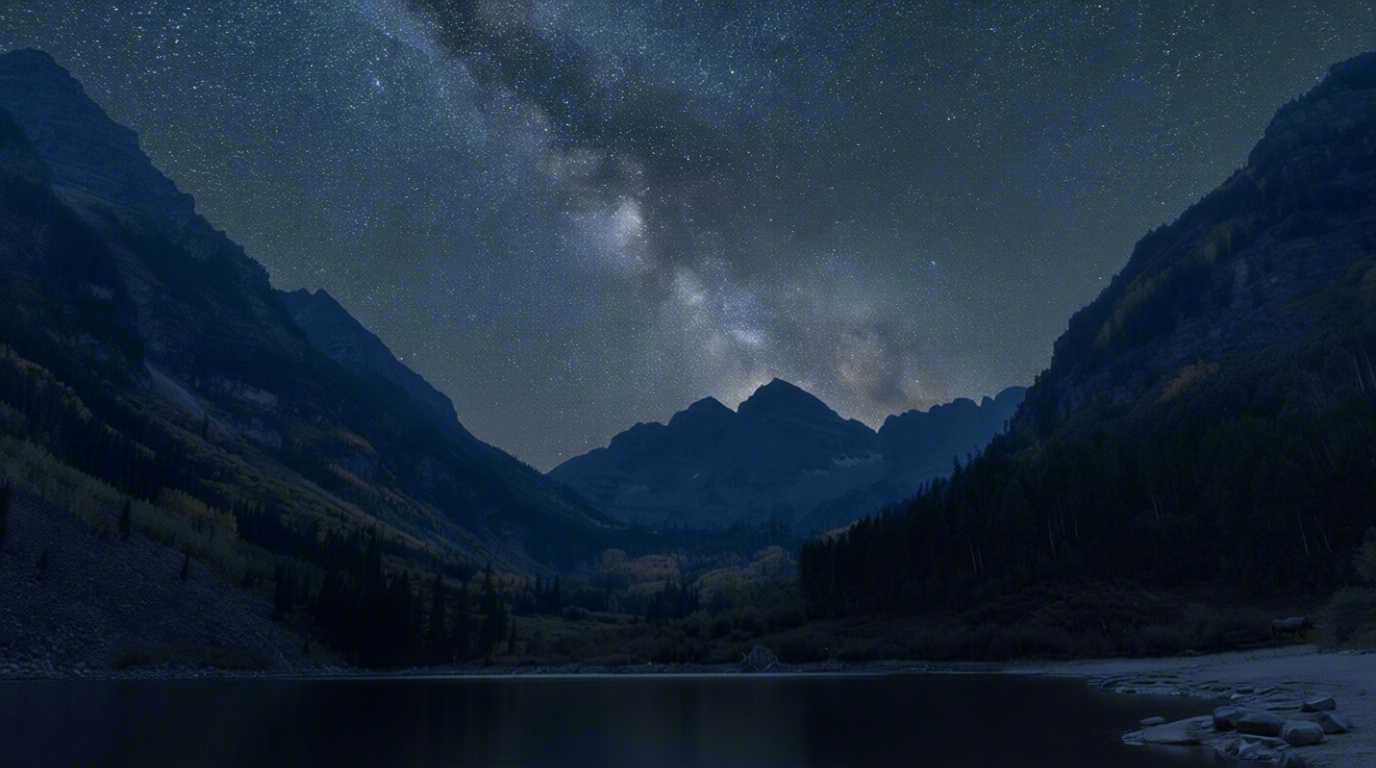
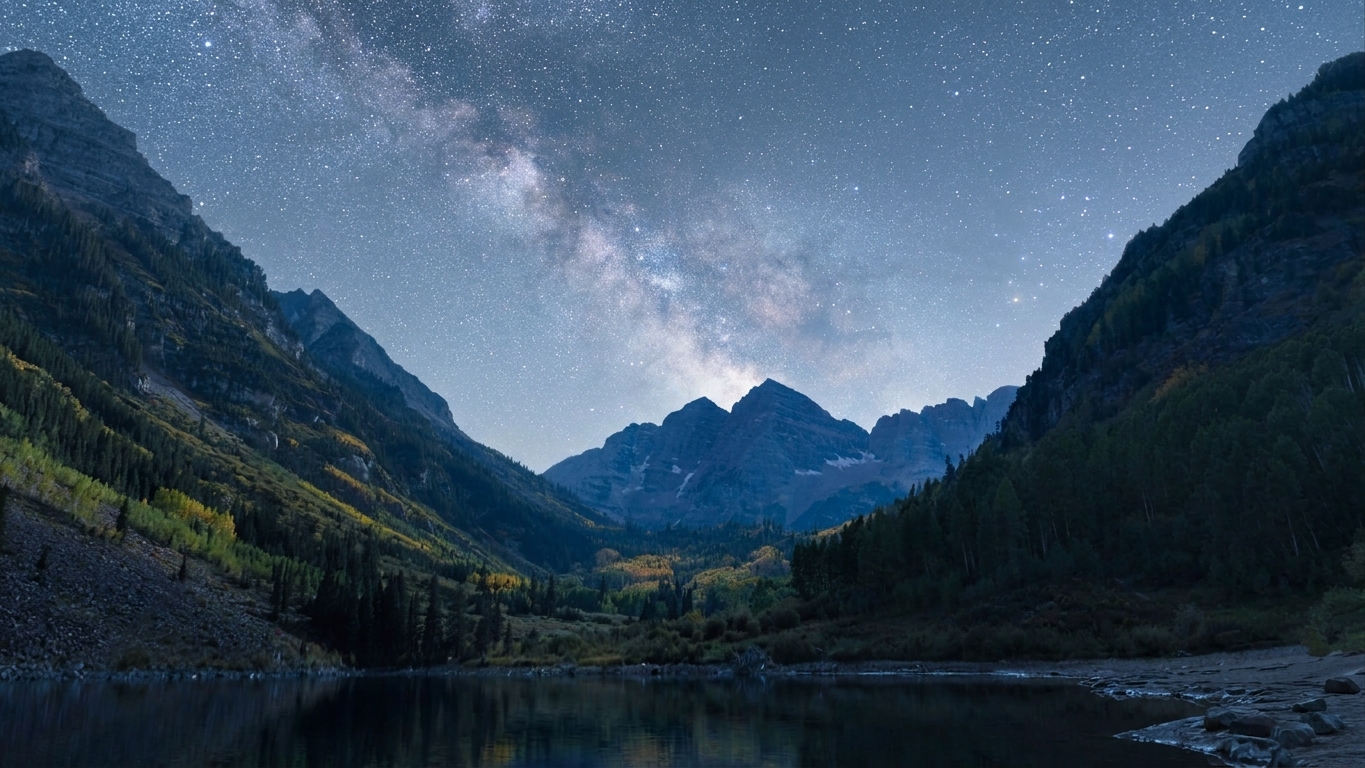
Original scene from Real VR Fishing and three AI-assisted night edits displayed on the CNAPS Studio card. Select an image to view it full size.
FireRed-Image-Edit-1.1 gives the lake a cool blue atmosphere, with a bright sweep of stars above the mountains. Qwen-Image-Edit-2511 produces a darker view with deeper shadows along the shoreline. Nano Banana Pro keeps more of the trees’ orange color and the foreground detail while adding a star-filled sky.
Look at the water, trees, and foreground as well as the sky. These examples show different interpretations of the scene, rather than three identical edits.
Describe the change you want
The card supports requests about time of day, season, or weather. Start with one clear change and say which parts of the scene you want to keep.
For a night scene, you could write:
Make it a clear, starry night. Keep the mountains, lake, and shoreline in place.
This is a suggested starting prompt, not a record of the prompt used to generate the displayed samples.
You can also try a winter setting or rainy weather. Describe your intended look in clear English, then review how the result changes both the atmosphere and the details.
How to try it
- Open the card. Go to Change Time and Season and explore the sample images. Sign in and make sure your Gemini API key is connected before running the task.
- Upload your photo. Add a PNG, JPG, or WebP image in the Input field.
- Describe your edit. In How should we change it?, write the time of day, season, or weather you want. Include any scene elements you want to keep.
- Run and compare. Click Run, then compare the three results. Check how the lighting works across the sky, water, and foreground.
- Download your favorites. Download the results you want to keep.
A few things to look for
Give the scene one clear direction. A simple request makes it easier to judge whether the result matches your idea.
Check the details you care about. Asking to preserve a shoreline or mountain does not guarantee that every small object will stay unchanged. Compare the result with your original before using it.
Look beyond the sky. Reflections, shadows, and tree colors all contribute to whether the new atmosphere feels convincing.
Explore the scene in Real VR Fishing
The sample comes from Real VR Fishing, a VR fishing game by Devs United Games that recreates real-world fishing locations. You can visit the lake in the game and fish solo or with up to three friends.
The photo editing task runs in CNAPS Studio. To experience the fishing location in VR, use the card’s Play Real VR Fishing button.
Can I change the season or weather too?
Yes. The card accepts descriptions of time, season, and weather. The images shown here demonstrate a day-to-night edit; try your own description to explore another look.
Start with one photo and imagine it in a different light.
