A character can feel quite different in watercolor than in a comic book. With Art Style Switch in CNAPS Studio, you can upload one character image and get four versions: 3D animation, chibi, watercolor, and comic book.
The styles are already set up. You don’t need to write a separate prompt for each one or build a workflow.
You get 3 free runs across all CNAPS Studio cards without an account. Sign in to download your results.
One character, four different looks
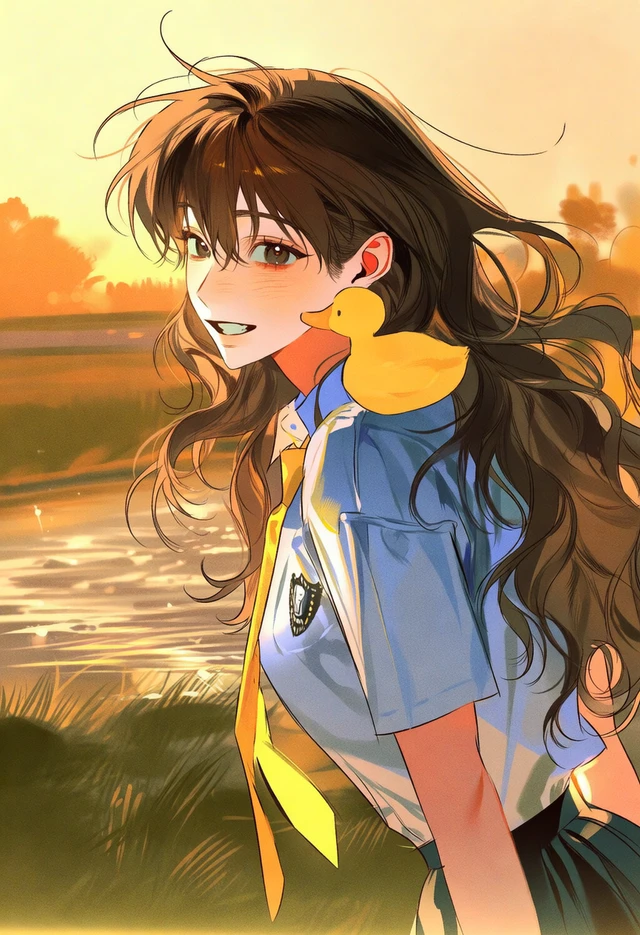
The sample starts with an illustrated character in a blue shirt and yellow tie, with a yellow duck on her shoulder. A sunset lights the water behind her.
Original
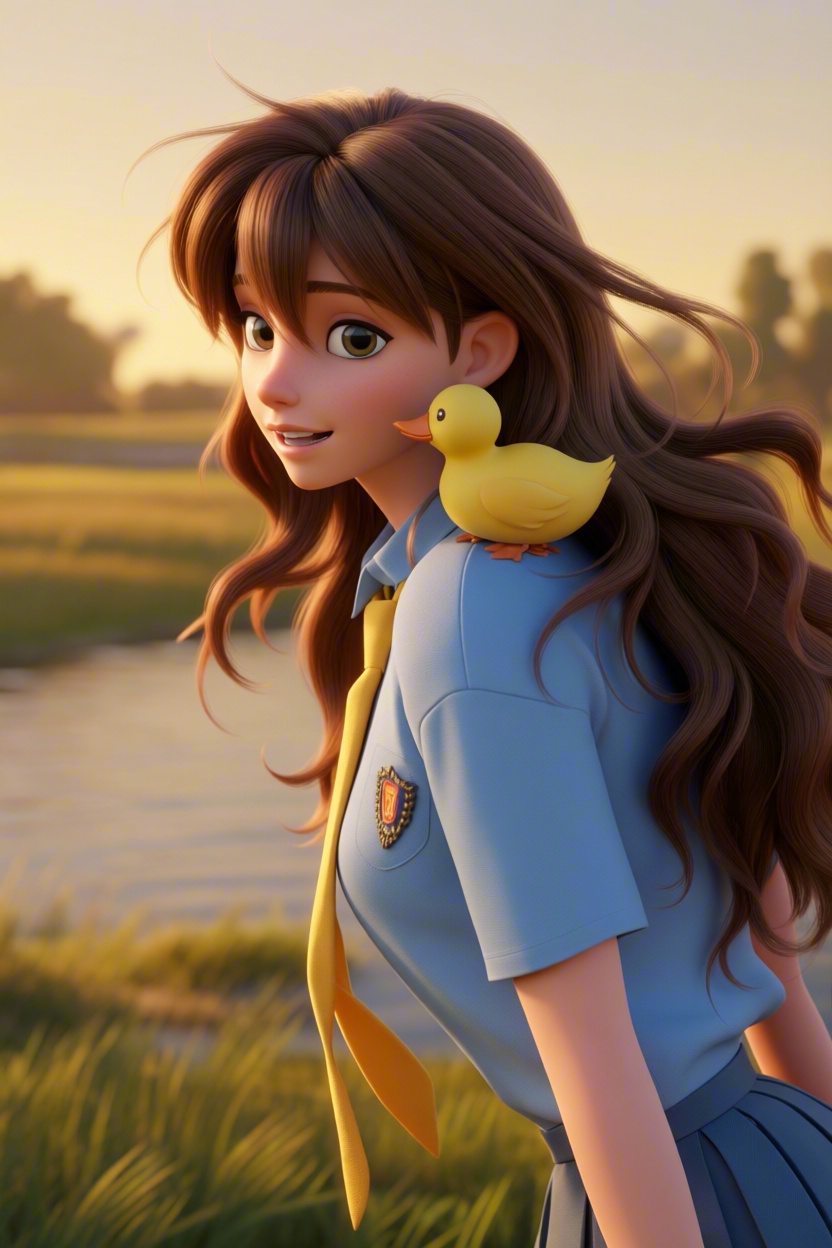
3D Animation
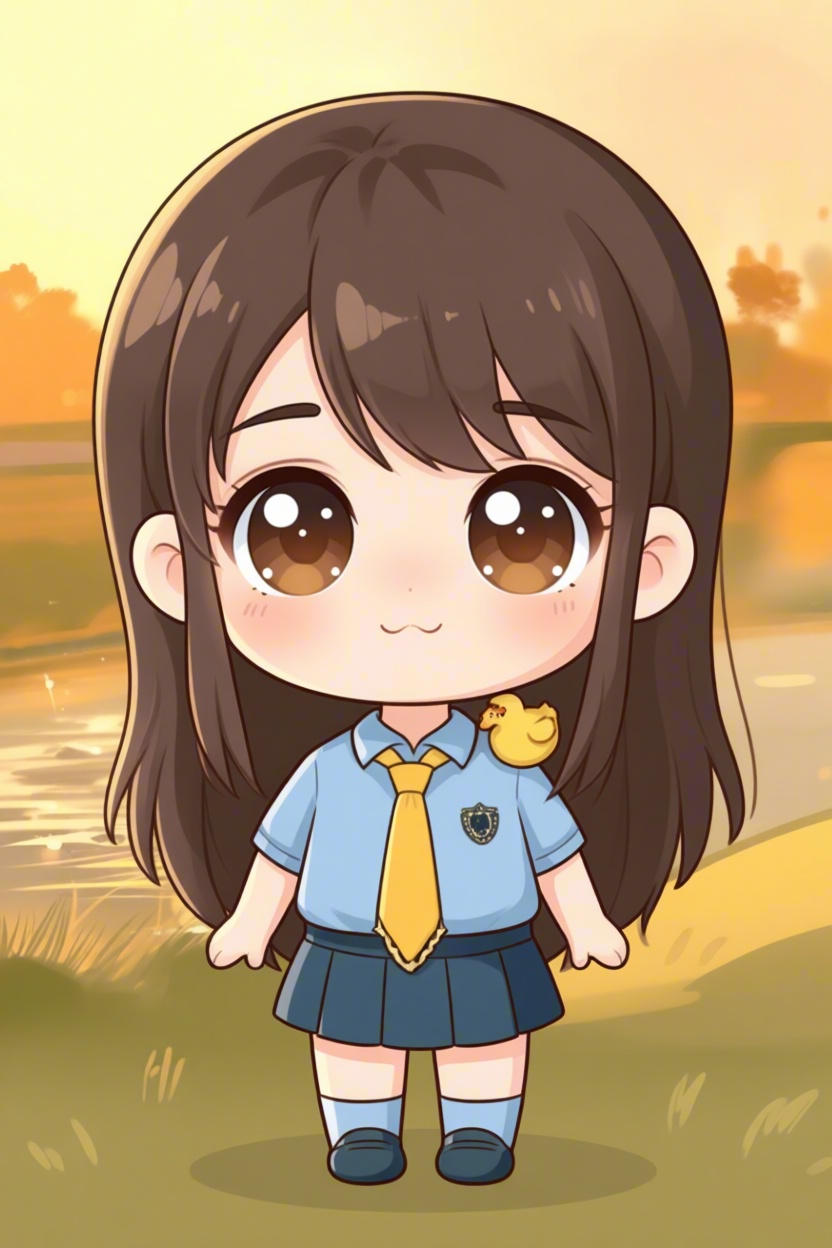
Chibi
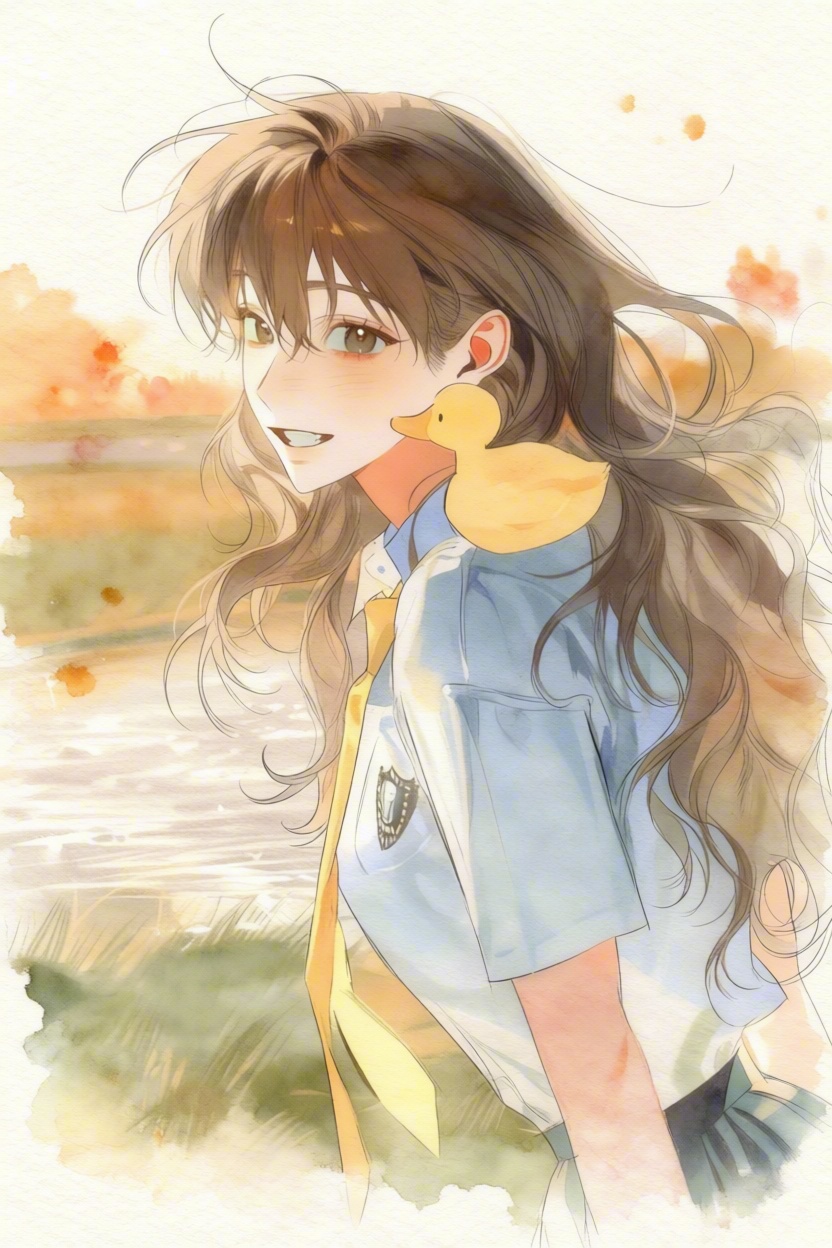
Watercolor
Comic Book
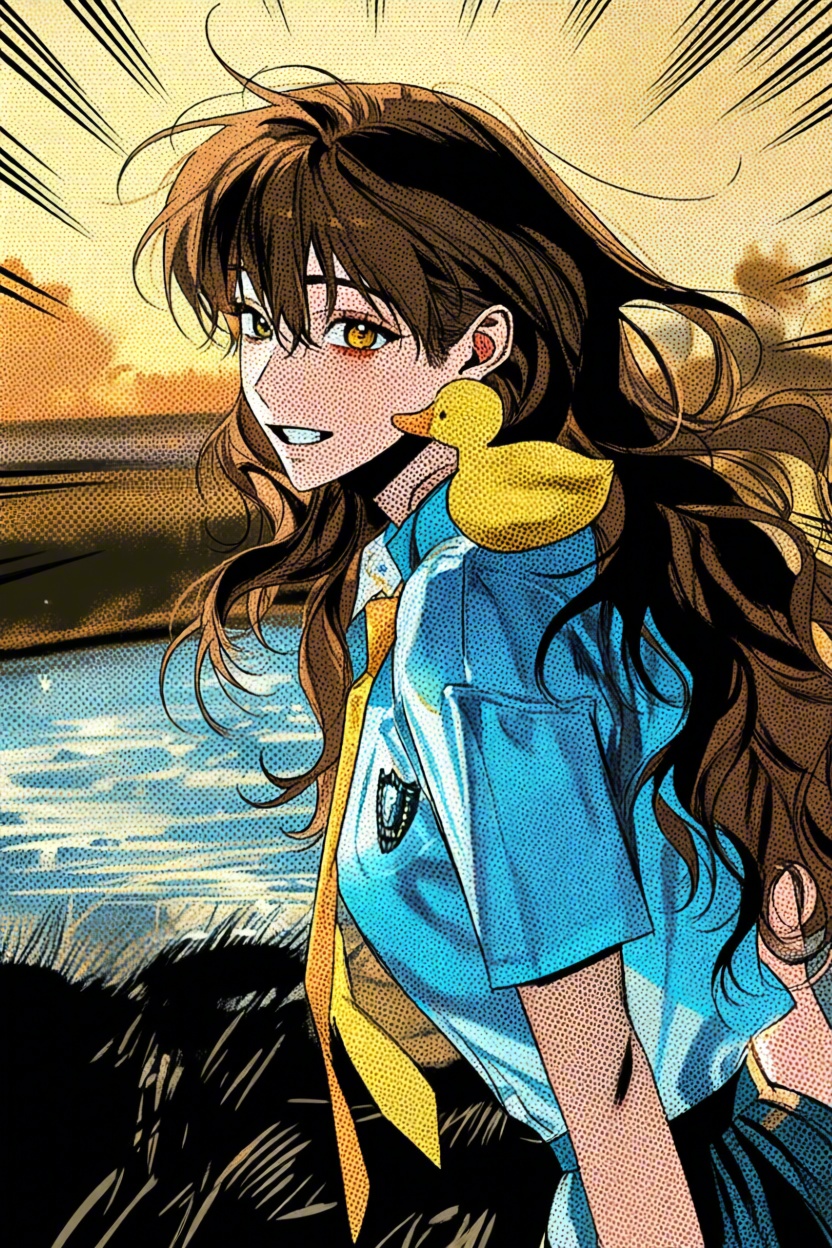
Each version gives the scene a different feel:
- 3D Animation: Rounded features, dimensional shading, and soft lighting give the character the look of an animated film still.
- Chibi: A larger head, smaller body, and front-facing pose make the character feel more playful. The duck becomes a much smaller detail near the collar.
- Watercolor: Pale washes, fine outlines, and a paper-like texture soften the portrait and background.
- Comic Book: Heavy outlines, halftone dots, and radiating lines make the scene more graphic.
The blue-and-yellow outfit and duck motif carry through the set, but proportions, poses, and small details can change. Look at all four before choosing the one that fits your character.
Made with our partner Caveduck
Art Style Switch features our partner Caveduck, where you can create AI characters, chat with characters made by others, and explore their stories.
The image transformation runs in CNAPS Studio. To explore the character-chat side, use Chat on Caveduck in the card’s partner section. It takes you to Caveduck, where you can browse or create characters.
Try it with your own character
- Open Art Style Switch. Look through the sample results to see the four styles.
- Select Use my image. Upload a PNG, JPG, or WebP. The card recommends one clear character and an image without text.
- Click Run. The card estimates about 3–4 minutes.
- Compare the results. Open each image at full size and check the face, outfit, and any small details you want to keep.
- Download your results. Sign in and save the versions you want to keep.
Choosing a starting image
Use an image where the character is easy to see. If an accessory matters—a shoulder companion, a badge, or a particular hairstyle—check it in each result. In this sample, the yellow duck is prominent in three versions and much smaller in the chibi image.
You can use the four versions to explore a new profile image, a character introduction, or a different visual direction for a story. The comparison is a starting point for deciding which treatment suits the character. Once you have a character image you like, try turning it into a talking video with a short greeting or introduction.
