Like the object in your photo, but wish it were somewhere else? With CNAPS Studio’s Keep the Product, Change the Scene card, you can upload a photo and describe a new background. The task is already set up, so you can start without choosing AI models or building a flow.
Try 3 free runs across all CNAPS Studio cards without an account. These runs are shared across cards. Sign in to download your results. A free plan is also available after signing up.
See the change: from a wooden table to a marble counter
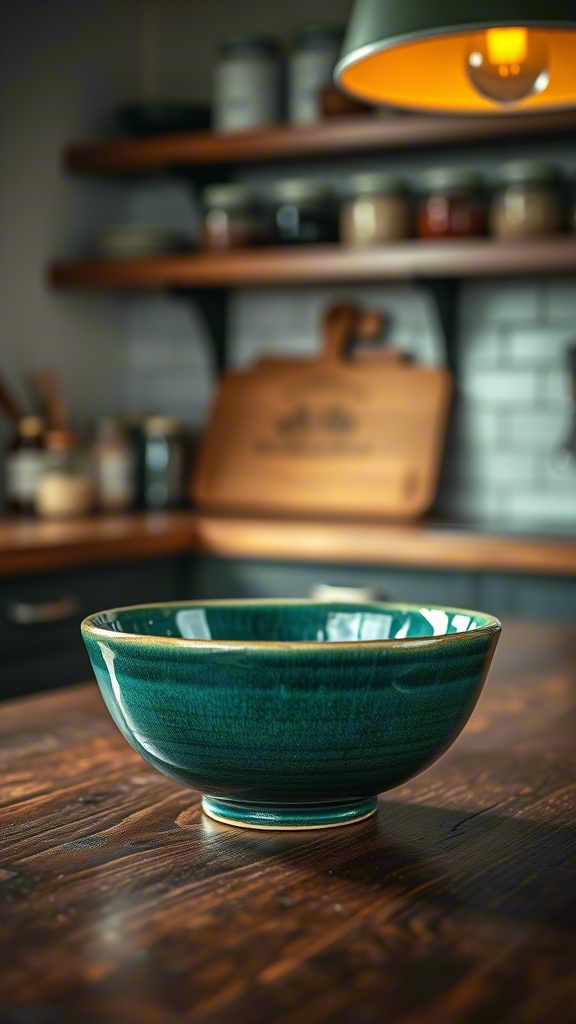
In this example, we start with a green ceramic bowl on a wooden kitchen table. Behind it are shelves, kitchen objects, and a warm hanging lamp. The result places the bowl on a white marble counter, with a bright window and softly blurred plants behind it.
BEFORE
AFTER
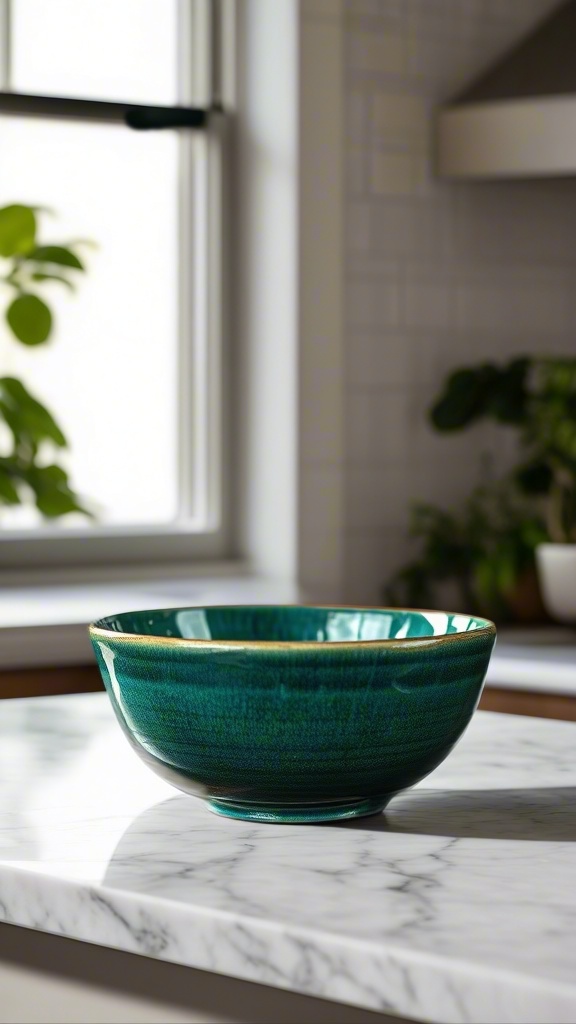
Left: the original photo. Right: the background replacement in this example.
The bowl’s green glaze, rim, shape, and position remain visually consistent in this example. The setting changes from warm and dark to bright and airy. Compare the two images above to see the change.
What did we ask it to change?
The example includes this description of the new scene:
a bright white marble kitchen counter seen close up, a sunlit window with a sheer curtain and blurred green plants behind, cool morning daylight from the left. The bowl rests directly on the marble: a dark tight contact shadow hugs its foot, and a soft shadow falls to the right. The marble veining continues right up to the bowl's base. Shallow depth of field, tabletop view.
For your own photo, describe where the object should be, what surface it should rest on, and how the scene should be lit. Mention the background objects you want to see. You do not need technical AI terminology to explain the setting.
How to try it
- Open the card. Go to CNAPS Studio Home and choose Keep the Product, Change the Scene.
- Explore the example. Drag the before-and-after slider to see what changed.
- Try your own photo. Upload a JPG, PNG, or WEBP and describe the background you want in How should we change it?
- Run and review. Click Run, then check the result, including the edges of the object and its shadow.
- Download when you are ready. Sign in to download your result.
The card’s guidance says a new result usually takes two to three minutes. Viewing the supplied example lets you inspect a result before generating your own.
A few tips for your first photo
- Leave space around the object. Parts that touch the edge of the photo may be redrawn.
- Check for traces of people. A crowd behind the subject can leave faint traces in the new background.
- Try a scene with some texture. The card warns that flat, empty backgrounds, such as a plain white studio wall, are a weak point.
- Check the details. Review outlines, shadows, and any text or logos before using the image.
Do I need an account or editing experience?
You can try 3 free runs without an account, shared across all CNAPS Studio cards. Sign in to download your results. A free plan is also available after signing up. The card is ready to use: you supply a photo and describe the scene. If you later want more control, customizing a flow is an additional option.
Try Keep the Product, Change the Scene →
Start with the example, then try a background for your own photo.
